Notification Log Overview
Last updated: November 9, 2026
The Notification Log lets you view, search, and track all communications sent from your Docket account to customers, employees, and contractors. Use the Notification Log to confirm message delivery, review recent communication history from the last 30 days, and quickly follow up on invoices, jobs, or other related records. Bulk notifications you send to your Commercial & Residential clients also appear here.
Before You Start
Your Notification Log may not include every notification type described in this article. Available notifications depend on how your Docket account is configured and what notification types you are using.
If you don't see the Notification Log tab in your menu, you may not have the necessary permissions. Reach out to your Admin for access.
Admins can manage employee access to the Notification Log from the employee profile permissions.
Access the Notification Log
To view all of the communications originating from your Docket account, click 'Notification Log' in the left-hand menu.
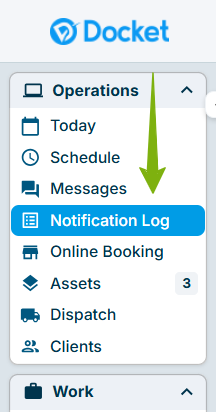
Please Note: Access to the Notification Log is permission-based. If you cannot see this option, please contact your Admin.
Notification Log Columns
Each row in the Notification Log represents a single communication and its details.

Message Type
Identifies the communication channel used:
Email
Text Messaging (SMS)
Each message type is represented by a distinct icon (mail or text) for easy identification.
Recipient
Displays recipient details, when available:
Business name
Contact name
Communication details:
Email messages show the email address
Text messages show the phone number
Created
Shows the exact date and time when the message was sent, along with the sender:
Manually sent messages display the employee's name
Automated messages display "System"
Status
Indicates whether the message was successfully delivered.
Email messages may also show "Open" or "Read" statuses when available.
SMS messages show "Delivered" or "Failed" based on whether the message reached the recipient.
Hover over or click the status to view additional delivery details or error information.
Message
Displays a preview of the message content, limited to three lines. Click the message to view the full content in a pop-up window.
Please Note: The text content from the message will be displayed, but all HTML formatting from the original message will be removed.
Template
Shows the name of the notification template used, as configured on the Notification Settings page.
Category
Identifies the recipient type:
Client: Client communications, including invoices and recurring bills.
Employee: Notifications sent to employee profiles.
Contractor: Notifications sent to contractors.
Please Note: The Template and Category columns are not displayed in the Client Profile view, but are still included when using search and filters.
Refers To
The Refers To column includes a link to the related record, such as an invoice, payment, or client, when available. Click the link to open the record and take action without leaving the log.
Manage the Notification Log
Default View and Sort
By default, notifications are sorted by send date, with the most recent communications displayed first. Click any column header to sort the list.
View Message Details
To see the full content of a message:
Click any message in the Notification Log.
A pop-up modal will open displaying the complete message.
Click "Close" to return to the Notification Log.
Resend Notifications
You can resend a notification using the resend "paper airplane" icon.
Click the "paper airplane" icon.
Review or update the recipient list, depending on the message type.
Send the notification again.

Please Note: The message content itself cannot be edited to maintain accuracy.
Message History
The notification log will display all messages from the last 30 days. Messages older than 30 days are automatically removed from the log to ensure that the page loads quickly.
Filters and Search
Use Filters at the top of the Notification Log to narrow results by specific criteria, such as message type or category.
You can also use the search bar to filter messages by keyword making it easy to locate communications related to a specific client, invoice, or notification type.
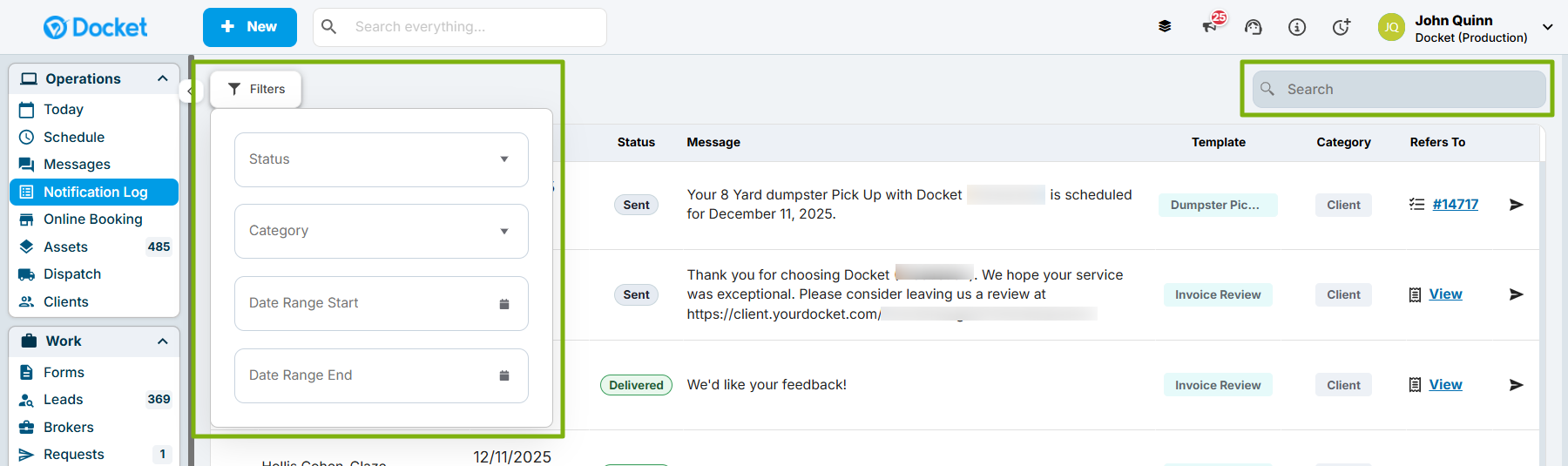
Access the Notification Log For a Single Client
To view all of the communications related to a specific client:
Open the client's profile.
Click the "Notification Log" tab.

Mobile View
The Notification Log is available on mobile devices:
Messages are displayed in a card-style format.
Tap a card to view full message details.
Best Practices
Use the Notification Log to verify whether important communications were delivered.
Review communication history from the last 30 days before following up with customers.
Track all communications related to a specific invoice, job, or client.
Monitor system-generated notifications to ensure automated processes are working correctly.
After you send a bulk notification, check the Status column to confirm delivery, and follow up with any client whose message failed. To learn more about notifying clients in bulk, check out our article: Send Bulk Notifications to Commercial and Residential Clients
Roles & Permissions
Access to the Notification Log can be enabled at the employee profile level. By default, employees with the Admin or Office Staff roles have access.
To adjust access for an individual employee:
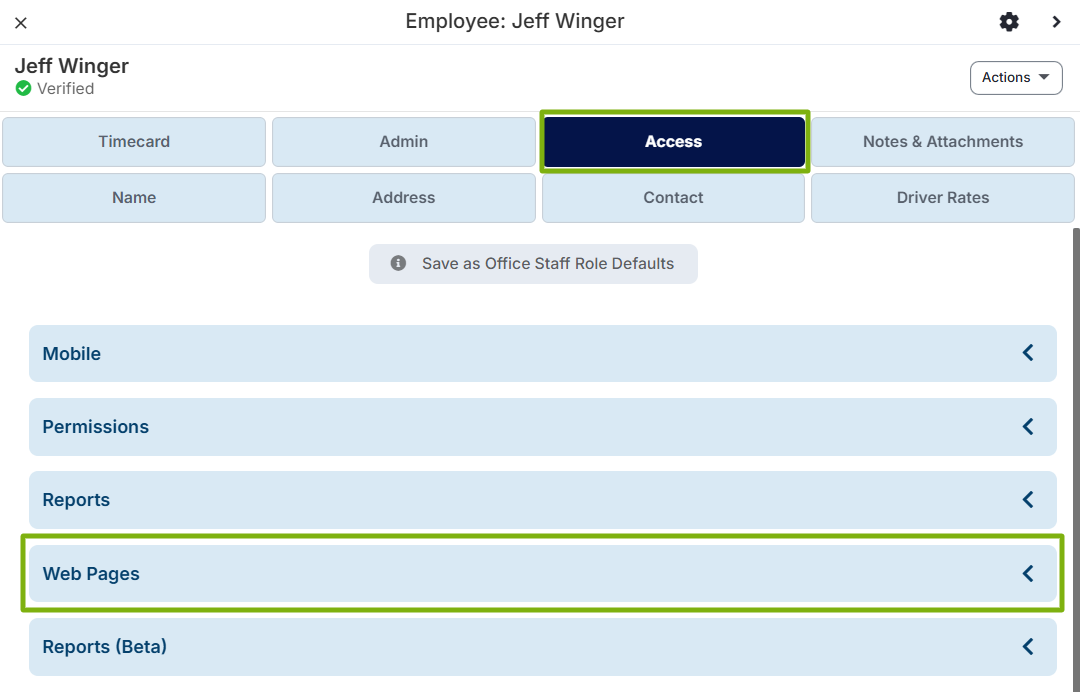
Open the employee's profile.
Click the "Access" tab.
Open the "Web Pages" section.
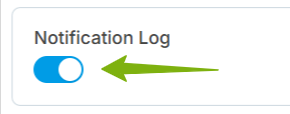
Toggle on/off the "Notification Log" permission.
If you have any questions, please reach out to our Support team through the chat widget on the bottom of this page or by sending an email to support@yourdocket.com!