
Connecting Google Analytics 4 (GA4) with DocketShop gives you powerful insight into how visitors engage with your online booking cart.
From tracking page views and purchases to identifying drop-off points, this integration helps you make smarter, data-driven decisions about your marketing and sales strategies.
Whether you're fine-tuning ad campaigns or improving user experience, GA4 gives you the visibility you need to optimize your checkout flow.
Before You Start
Here are a few things to know before you continue:
- You're responsible for managing this integration. Our Support team can only help with adding your Measurement ID to DocketShop.
- If you're experiencing issues with event triggering, tag firing, or GA4 account configuration, you'll need to contact your web developer or Google Support directly.
- Docket cannot provide assistance for GA4 troubleshooting or Google Tag Manager configurations.
- You'll need to already have a Google Analytics account and have Editor access to it. Learn how to create one here.
- You'll need to have already set up a Property in your Google Analytics account. Learn how to create one here.
- You'll need to have already set up a Data Stream in your Google Analytics account. Learn how to create one here.
- You need to be the Account Owner or have Admin access in your Docket account.
Google Analytics 4 (GA4) and DocketShop
GA4 is Google's next-gen analytics platform for both websites and apps. It helps you understand how visitors interact with your website, tracking everything from page views to purchases.
To start using GA4, visit https://analytics.google.com
If you're on our Premium DocketShop plan, you can enter your GA4 Measurement ID to monitor client interactions within your shopping cart.
To see your current DocketShop plan, just follow the below instructions:
- Click on "Online Booking" to the left.
- Check the bottom of your screen to verify if you are on the Premium or Basic version.
If you want to upgrade to our Premium plan, please contact your original Docket Sales Rep or submit your information here to receive a call from our Sales team.
Add Your GA4 Measurement ID to DocketShop
If you're already on our Premium plan or have recently upgraded to it, you can add your GA4 Measument ID to DocketShop by completing two steps: copying your GA4 Measurement ID from your Google Analytics account and then adding it to DocketShop.
Copy Your GA4 Measurement ID
Assuming that you already have a Data Stream set up and ready to add to DocketShop, just follow the below instructions to find and copy it:
- Log into your Google Analytics account.
- If you have multiple GA4 accounts, confirm you're in the correct one.
- Once you're in the right GA4 account, click on "Get tagging instructions".
TIP: Alternatively, if you only have one property set up in your GA4 account and it's the property you want to use with DocketShop, just copy the Measurement ID from the Home page above the "Get tagging instructions" button. - After you click the button, you'll be taken to the Data Stream you previously created for this Property. Click the copy icon to the right of the Measurement ID you see at the top.
TIP: If you have more than one Data Stream for the Property you're currently in, close out of the info box that appears and open the Data Stream you'd like to use for DocketShop.
Add Your GA4 Measurement ID to DocketShop
Once you've copied your Measurement ID, it's time to add it to DocketShop by following the below instructions:
- Log into your Docket account.
- Click into Online Booking in the left-hand menu.
- Click into Website Scripts.
- Paste your Measurement ID into the Google Analytics Measurement ID (GA4) field.
- Click "Save Changes" at the top.
Update Your DocketShop Integration
Depending on how you’ve integrated DocketShop with your website, you may need to update your existing setup.
If you're using a DocketShop Direct URL, iFrame, or Embed Script, you'll need to copy the updated code that includes your GA4 tracking and replace any older URLs, iFrames, or scripts.
If you're using a website created by Docket, you'll need to contact Docket's Support team to update your DocketShop code.
Track Events in Google Analytics
Once integrated, DocketShop will start triggering custom Events in your Google Analytics Dashboard as visitors interact with your online booking cart.
Events measure specific interactions with DocketShop, such as page loads, link clicks, or purchases.
DocketShop uses a direct GA4 implementation and supports the following custom events:
- cart_opened - Triggered when the shopping cart is opened.
- select_item - Triggered when an item is selected.
- purchase_attempt - Triggered when a purchase is attempted.
- purchase_failure - Triggered when a purchase fails.
- connected_service_area_assessment - Triggered during a service area assessment.
- remove_from_cart - Triggered when an item is removed from the cart.
- add_to_cart - Triggered when an item is added to the cart.
- purchase - Triggered upon successful purchase.
- contact_form_submission - Triggered when a contact form is submitted.
These events allow you to measure engagement, drop-off points, and conversion rates.
Add Custom GA4 Events to DocketShop
If you create custom Events in your Google Analytics account, you can add those to DocketShop so they can be tracked properly.
After you've created a custom Event, add it to DocketShop by following the below instructions:
- Log into your Docket account.
- Click into Online Booking in the left-hand menu.
- Click into Website Scripts.
- Add your custom Event to the Custom Analytics Tags area.
- Click "Save Changes" at the top.
If these parameters are present in the URL, DocketShop will capture and pass them to your GA4 account for further review.
View Events in Google Analytics
After your Measurement ID and any custom Events are added to DocketShop, you'll be able to see what's tracked in your Google Analytics account; just follow the below instructions:
- Log into your Google Analytics account.
- If you have multiple GA4 accounts, confirm you're in the correct one.
- Click into Reports in the left-hand menu.
- Expand the 'View user engagement & retention' section in the left-hand menu that appears.
- Click on Events in the left navigation pane.
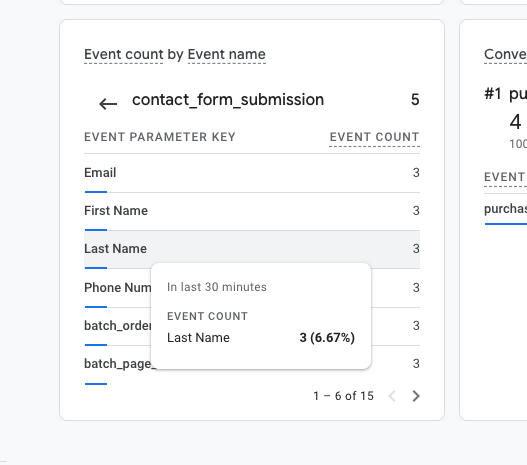
- You'll then see DocketShop events like purchase, add_to_cart, and contact_form_submission listed in real time with historical data.
UTM and Ad Tracking Parameters
DocketShop automatically detects if certain tracking parameters are present in URLs to help you measure marketing efficacy. These parameters help identify where a visitor came from and how they interacted with an ad or marketing campaign.
Here’s what DocketShop supports:
- utm_source – Identifies where the traffic is coming from (e.g., Google, Facebook, a newsletter).
- utm_medium – Shows the type of traffic (e.g., email, social, CPC for paid ads).
- utm_campaign – Tracks specific marketing campaigns (e.g., "Spring_Sale_2025").
- utm_content – Differentiates between similar links in the same ad or campaign.
- utm_term – Used for tracking keywords in paid search ads.
- utm_id – A unique ID for a specific ad campaign.
- gclid – A tracking parameter added by Google Ads to measure ad performance.
If you have any questions, please reach out to our Support team through the chat widget on the bottom of this page or by sending an email to support@yourdocket.com!