Troubleshooting Your Fiserv/Clover Card Reader
Last updated: November 9, 2026
Quick Diagnostics Checklist
Before diving into specific issues, check these common solutions:
✅ Card reader is powered on and charged
✅ Bluetooth is enabled on your mobile device
✅ You're using the latest version of the Docket app
✅ You're within range of the card reader (15 feet or closer)
✅ No other devices are connected to your card reader
Connection Issues
Device Not Found
Problem: Your Clover Go doesn't appear in the available devices list.
Possible Causes:
The device is out of range.
The device's battery is very low or empty.
Solutions:
Power cycle the card reader
Turn off the device completely by holding down the power button for 10 seconds
Wait 10 seconds
Turn it back on by holding the power button for 3 seconds
Try connecting again
Check Bluetooth settings
Ensure Bluetooth is enabled on your phone
Return to the Docket app and try pairing again
Restart the Docket app
Close the app completely
Reopen and try the connection process again
Check proximity
Move within 3 feet of the card reader
Ensure no obstacles between devices
Charge your card reader device
The card reader won't connect if it has a dead battery, or a battery that is low (below 20%).
Plug the card reader into a charger and allow it to recharge.
Turn it back on by holding the power button for 3 seconds
Device Found - Can't Connect
Problem: Your Clover Go appears in the available devices list, but it will not connect successfully to your phone or tablet.
Possible Causes:
The device is currently connected to another phone or tablet.
The device's battery is very low or empty.
Solutions:
Disconnect the card reader from another device.
If the card reader is actively connected to another device, you will not be able to connect to it with any other device. This is a security feature. You will need to disconnect from the current device so the card reader can connect to a new one.
On the currently connected device, go to Settings > View Settings
Click on the Actions menu under the connected card reader.
Select Disconnect.
Now resume your attempt to connect the card reader to your chosen device.
Power cycle the card reader
Turn off the device completely by holding down the power button for 10 seconds
Wait 10 seconds
Turn it back on by holding the power button for 3 seconds
Charge your card reader device
The card reader won't connect if it has a dead battery, or a battery that is low (below 20%).
Plug the card reader into a charger and allow it to recharge.
Turn it back on by holding the power button for 3 seconds
PIN Required During Pairing
Problem: Your device is asking for a PIN during pairing.
Possible Cause: Some devices require PIN information to be entered when pairing with another device for the first time.
Solutions:
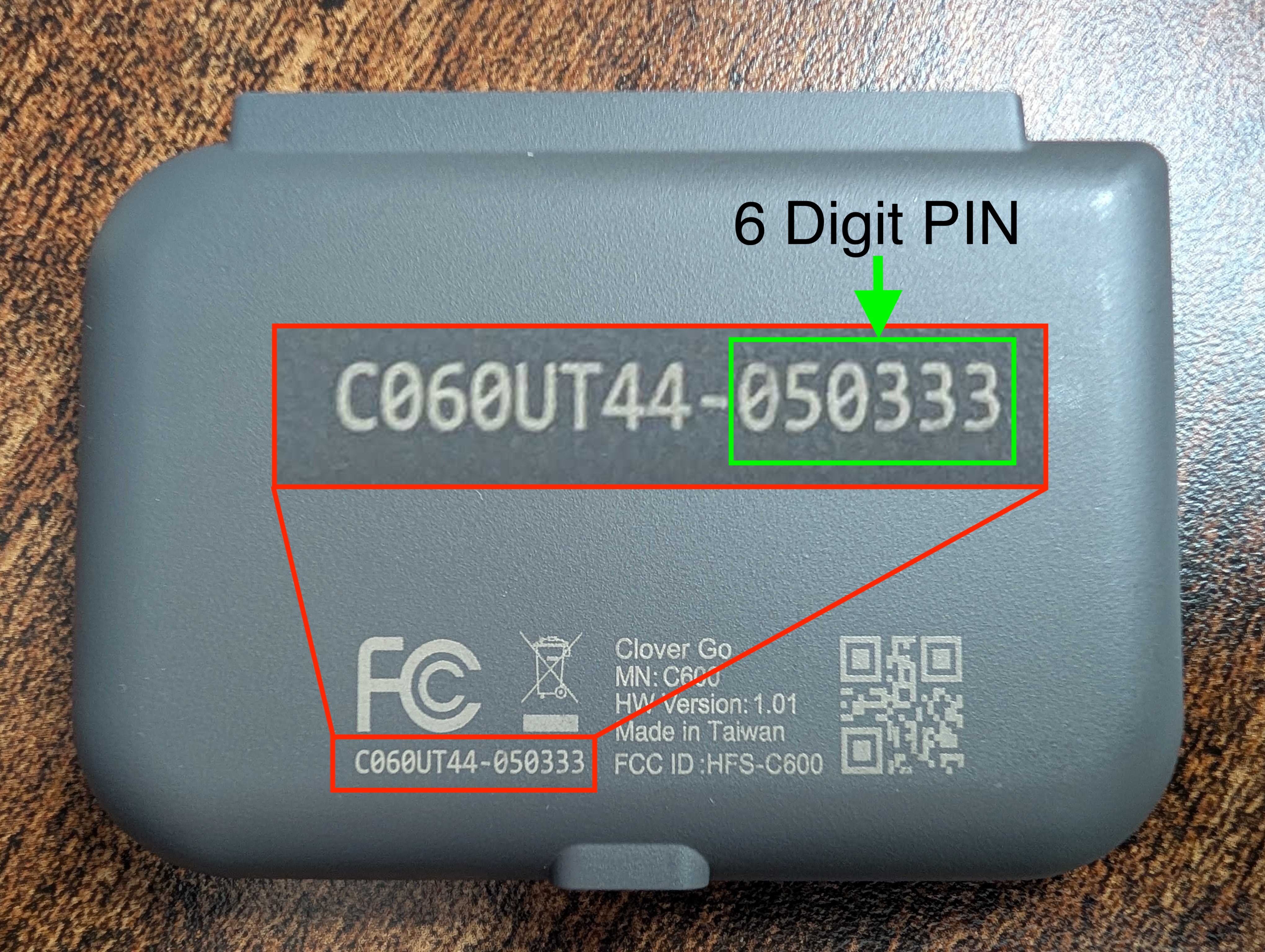
Locate the PIN
Check the back of your Clover Go device
The PIN is the last 6 digits of the serial number at the bottom of the device printed on the back, and will be 6 digits (See photo below for reference)
Enter exactly as shown
PIN not working
Double-check you're reading the correct numbers
Be careful with similar-looking characters (0 vs O, 6 vs G)
Try entering the PIN slowly
No PIN required
Some phones don't require a PIN
If your device doesn't ask for one, proceed without entering anything
Connection Drops During Use
Problem: Card reader disconnects while processing payments.
Possible Causes:
The device is out of range.
There is significant interference in the area
Solutions:
Use the reconnect option
Look for "Reconnect" button in the payment workflow
Tap to reconnect without leaving the payment screen
Manual reconnection
Go to Settings > Connect a Card Reader
Select your device from the list
Return to the payment workflow
Improve connection stability
Keep devices closer together
Ensure card reader has sufficient battery
Payment Processing Issues
Transaction Failed
Problem: Payment fails to process or shows "Transaction Failed" message.
Common Causes & Solutions:
Customer's card issue
Insufficient funds
Card expired or damaged
Card blocked by bank
Solution: Ask customer to contact their bank or try a different card
Card reader issue
There is debris in the card reader slot
Low battery
Solution: Clean the card slot with compressed air, or use tap top ay
Network connectivity
Poor internet connection
Solution: Move to area with better signal, try again. Offline payments are not supported for credit card transactions.
Card Won't Read
Problem: Card reader doesn't recognize inserted or tapped cards.
Solutions:
For chip cards
Ensure card is inserted chip-first
Push card firmly into slot
Clean the card's chip with a soft cloth
Try a different card to test the reader
For contactless payments
Hold card/device closer to the reader
Try different positions around the contactless symbol
Ensure the card supports contactless payments
Separate the card from any other cards or tap to pay devices
General card issues
Card may be damaged or demagnetized
Try manual entry as alternative
Test with a known working card
Low Battery Warning
Problem: Card reader shows low battery or powers off unexpectedly.
Solutions:
Immediate charging
Connect the included charging cable
Allow 15-30 minutes for minimum charge
Use manual entry for immediate payments
Proper charging
Use only the included charging cable
Charge fully before use (typically 2-3 hours)
Don't use the device while charging for best results
Battery maintenance
Charge regularly, don't let battery drain completely
Store in a cool, dry place
If battery life becomes very short, contact Fiserv for replacement
App-Related Issues
Card Reader Option Not Available
Problem: Credit card payment only shows manual entry option.
Solutions:
Complete initial pairing
Go to Settings > Connect a Card Reader
Pair your device through settings first
Card reader option will appear on payment screens after successful pairing
Check pairing status
Verify device shows as "Connected" in settings
If not connected, re-pair the device
App reinstall issues
If you recently reinstalled the Docket app
You must re-pair the card reader through settings
Previous pairings don't carry over after reinstall
App Crashes During Payment
Problem: Docket app closes or freezes during card reader payment.
Solutions:
Restart the app
Close the app completely
Reopen and try the payment again
The transaction should not have been charged
Update the app
Check app store for Docket app updates
Install any available updates
Restart the app after updating
Device restart
Restart your mobile device
This clears memory and connection issues
Try the payment process again
Error Messages and Meanings
Common Error Messages
"Device not found": Card reader isn't discoverable or powered off
"Connection failed": Bluetooth pairing unsuccessful, there may be significant interference in the area from other devices
"Low battery": Card reader needs charging, ti will not connect or run transactions when below 20% battery
"Transaction failed": Payment processing error (usually card/bank related)
"Please try again": Temporary processing or technical issue, usually clear to try again immediately
Getting Additional Help
Before Contacting Support
Try these steps:
Restart both the card reader and mobile device
Ensure all software is up to date
Test with a different card if possible
Try both chip and tap payment methods
When to Contact Support
Contact Docket Support for:
Mobile app issues
Connection problems that persist after troubleshooting
Questions about payment processing in the app
Issues with transaction records
Contact Fiserv Support for:
Hardware problems with the card reader
Merchant account issues
Transaction processing questions
Device replacement needs
Information to Have Ready
When contacting support, have this information available:
Device model (Clover Go)
Mobile device type and model
Docket app version (found on the mobile app Settings page)
Specific error messages, or screenshots if you were able to capture them
Steps you've already tried
Prevention Tips
Maintain Your Equipment
Keep card reader clean and dry
Charge regularly before battery gets too low
Store in protective case when not in use
Handle gently to avoid drops or impacts
Train Your Team
Ensure all users know basic troubleshooting steps
Practice the payment process during training
Understand how to reconnect during payment workflows
Remember: Most issues can be resolved with simple troubleshooting steps. Device compatibility can be tricky, so when in doubt, restart your devices and try again!