Optimize a Commercial & Residential Route
Last updated: November 11, 2026
Your routes grow, and the stop order that worked six months ago may not work today. Route Optimization reorders the stops on a Commercial & Residential route to cut your miles or your drive time. It updates your route template, which is the base schedule behind every day the route runs. You preview the result first and compare it with your current route on the map, so nothing changes until you save it.
Route Optimization is for Commercial & Residential routes. If you run roll-off, IronRouteAI optimizes your dumpster tasks if you are on the Pro Plus Plan.
Before You Start
Here are a few things to know before you continue:
Depending on how your permissions are set up, you may not be able to access some or all of these features. Please reach out to your Account Owner if additional access is needed.
Your route needs a Start Yard, an End Yard, and an Expected Start Time. Docket requires all three to save a new route or changes to an existing one. It uses them to calculate drive time to your first stop and from your last stop. Expected Start Time is when you expect your driver to leave the yard.
To learn more about required fields for routes, check out our article: Create and Manage Routes
To learn more about adding yard locations, check out our article: Dumpster Management Overview and Directory
Your yard and stop addresses need to be accurate. Docket can’t build an optimized route from inaccurate information.
Docket uses your on-site activity durations to calculate how long your route takes. It fills in a default for each stop, and you can change it on a single stop. To learn more about setting these, check out our article: Commercial & Residential Management Overview and Directory
Use Required service time only on stops that must be serviced before or after a certain time. Optimization tries to honor it, but it can’t guarantee it
Optimize a Route
Use “Optimize Route” after your route is set up, with stops imported and assets assigned. Run it again after a big change, like adding a new community, or when many added stops make the order feel off.
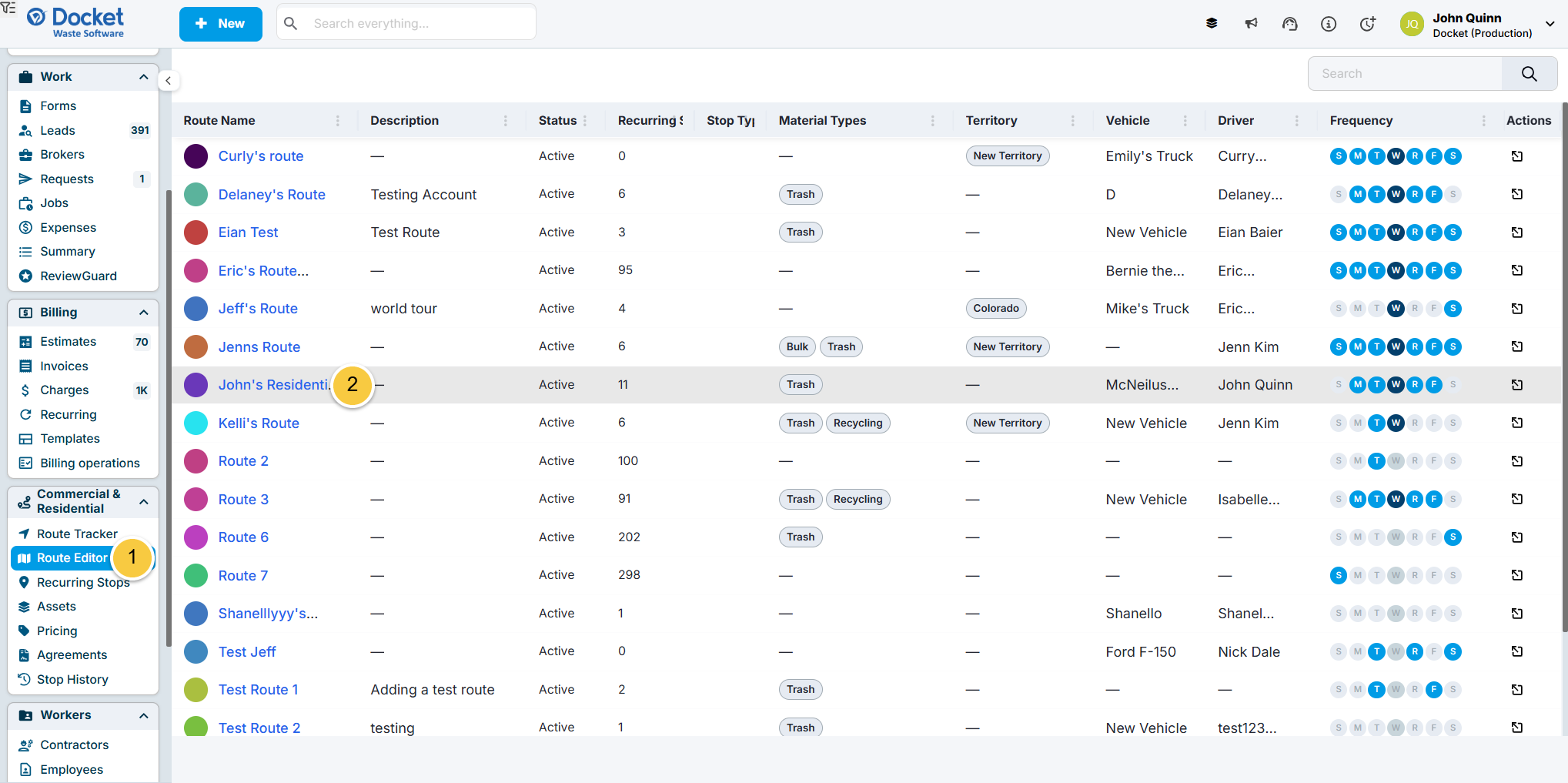
Click “Route Editor” in the Commercial & Residential section of the left-hand menu.
Click the route name to open the route’s detail page with the Stops tab open.
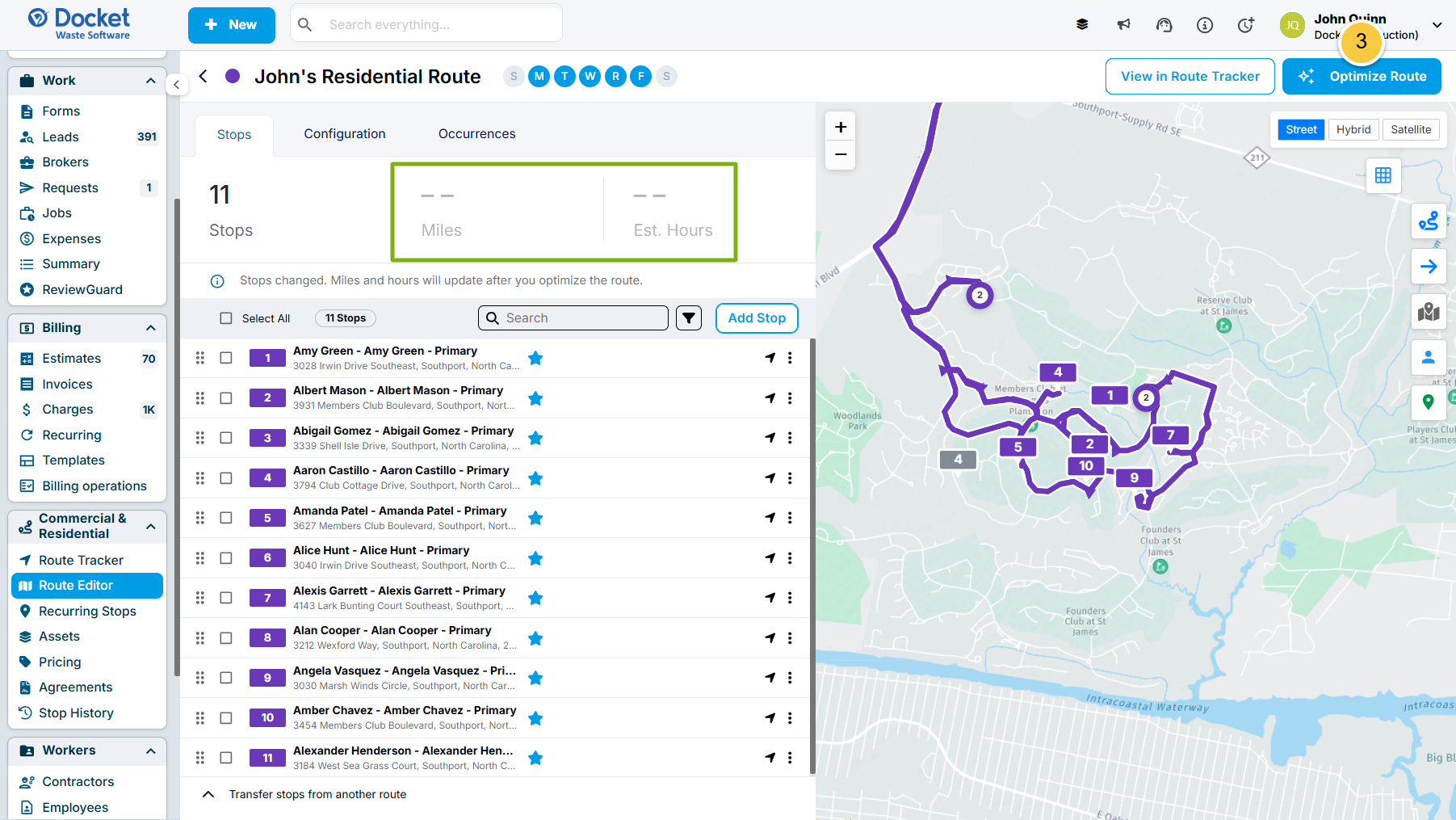
On the route details page Stops tab, click the “Optimize Route” button in the top-right corner.
Miles and Est. Hours show as “--” until you optimize a route. If you add, delete, or move stops afterward, they reset until you optimize again.
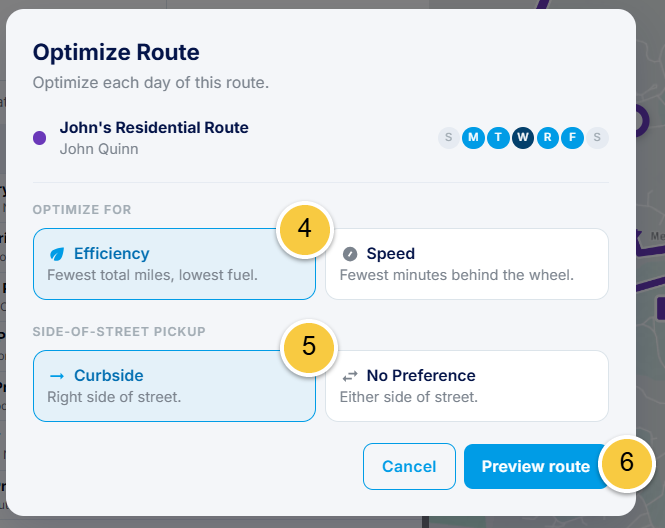
Under “Optimize For,” select one of the following:
Efficiency: Fewest total miles, lowest fuel.
Speed: Fewest minutes behind the wheel.
Under Side-of-Street Pickup, select one of the following:
Curbside: Right side of the street. Choose this if your trucks are side loaders or your residential route has cul-de-sacs. It can add turns, distance, and time.
No Preference: Either side of the street. Choose this for commercial routes or routes with spread-out stops, where the approach doesn’t matter.
Click “Preview route.”
If Your Route Is Missing Required Details
If your route is missing a Start Yard, End Yard, or Expected Start Time, a red message appears in the Optimize Route window and “Preview route” stays unavailable. This happens on older routes that you haven’t edited since Docket made these fields required.
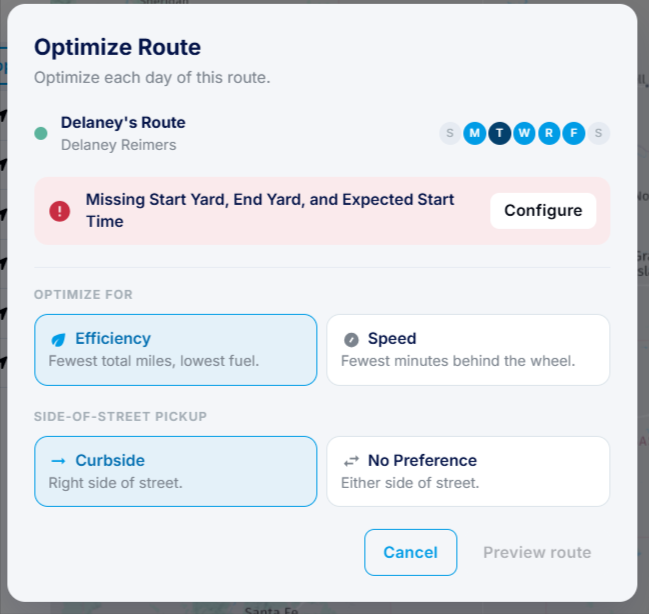
If you see this message, follow these steps to update your route so it can be optimized:
Click the “Configure” button in the red message.
Add the missing details on the route’s Configuration tab.
Click “Save Changes” to save your changes.
Click into the “Stops” tab.
Click the “Optimize Route” button to try again.
Review the Optimized Route Preview
After a few seconds, the Route Optimization Preview opens. The preview is read-only. You can’t add, move, or delete stops until you save or reject the changes.
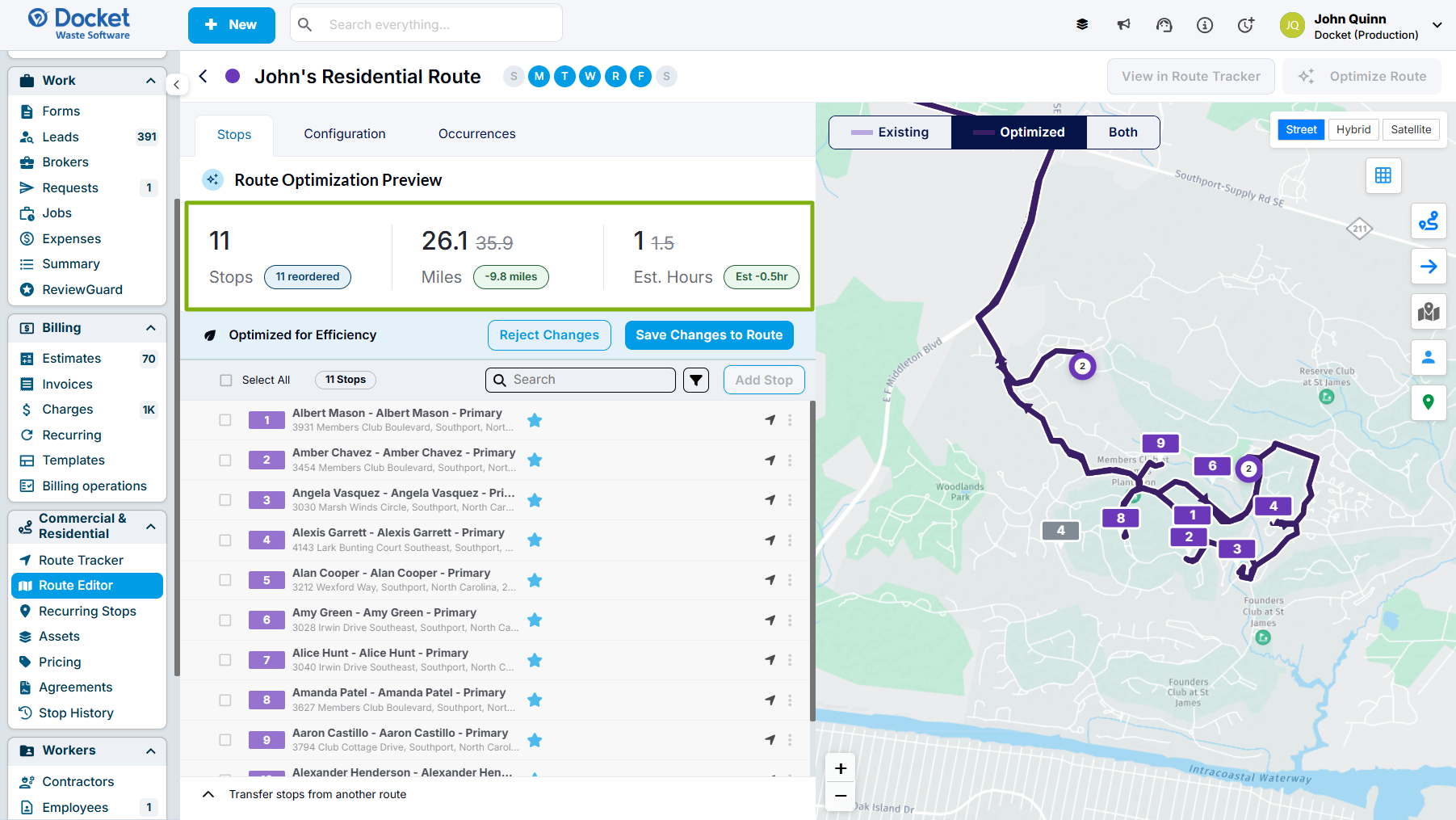
The top of the preview shows how the new order compares to your current one:
Stops: The number of stops that moved. This number is often high, because moving one stop shifts the stops after it.
Miles: Your new total, your current total, and the difference.
Est. Hours: Your new estimated drive time, your current estimate, and the difference.
The toggle at the top of the map shows your route lines before and after optimization. Each option has a line sample that matches its route line on the map: a lighter line for Existing and a darker line for Optimized.
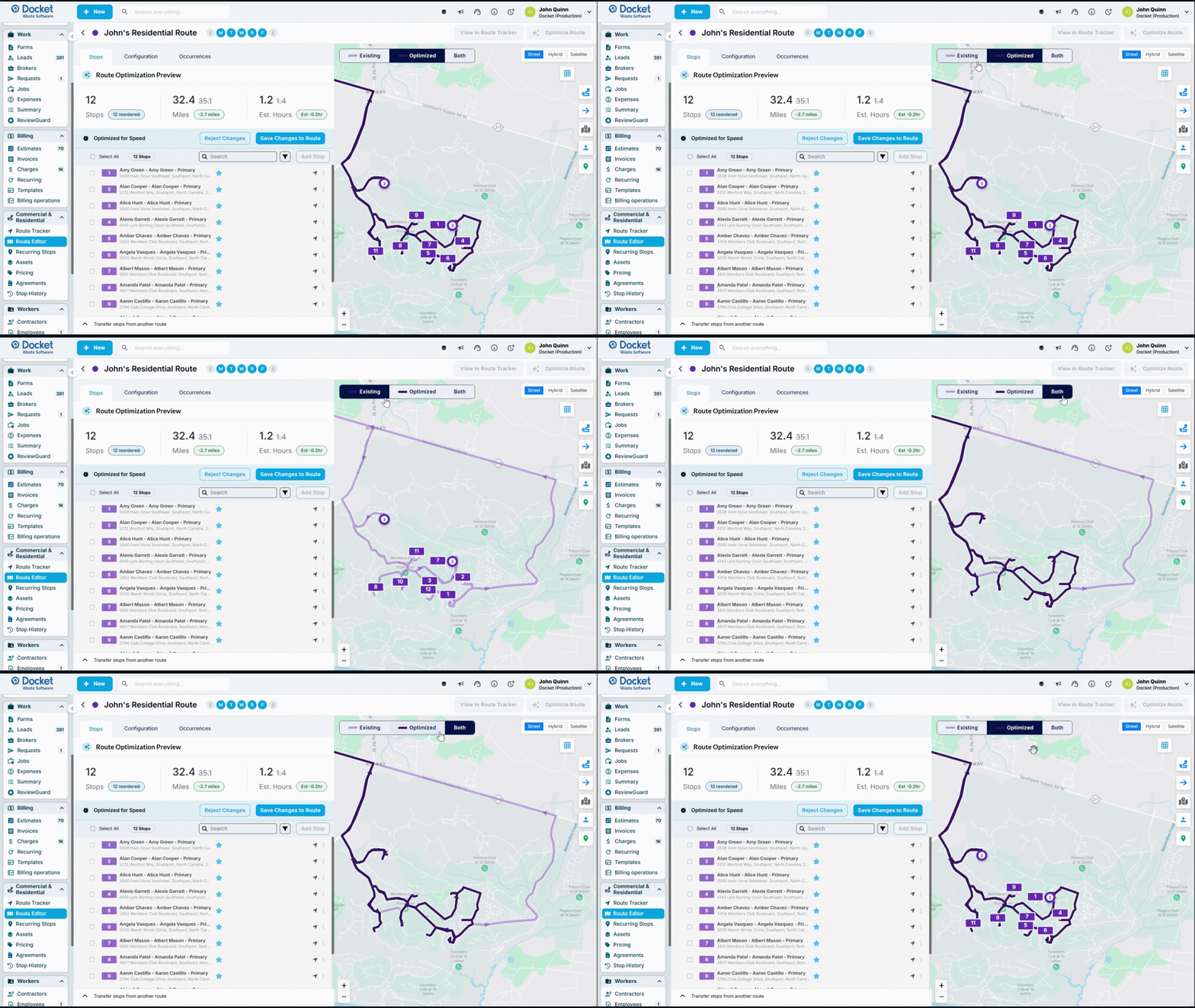
Existing: Your current stop order.
Optimized: The new stop order.
Both: Both orders on the same map, so you can see what changed.
You can also switch the map between Street, Hybrid, and Satellite views. To find a stop on the map, click the arrow next to it in the stop list.
TIP: Zoom in on an area with many close stops, like a cul-de-sac, and switch between “Existing” and “Optimized” to see how the path changes.
Save or Reject the Changes
After reviewing your optimized route, you can either save the changes to the new optimized route or reject them to revert back to your original route stops order.
Click “Save Changes to Route” to apply the new order to your route.
Click “Reject Changes” to keep your current order. Your route stays exactly as it was.
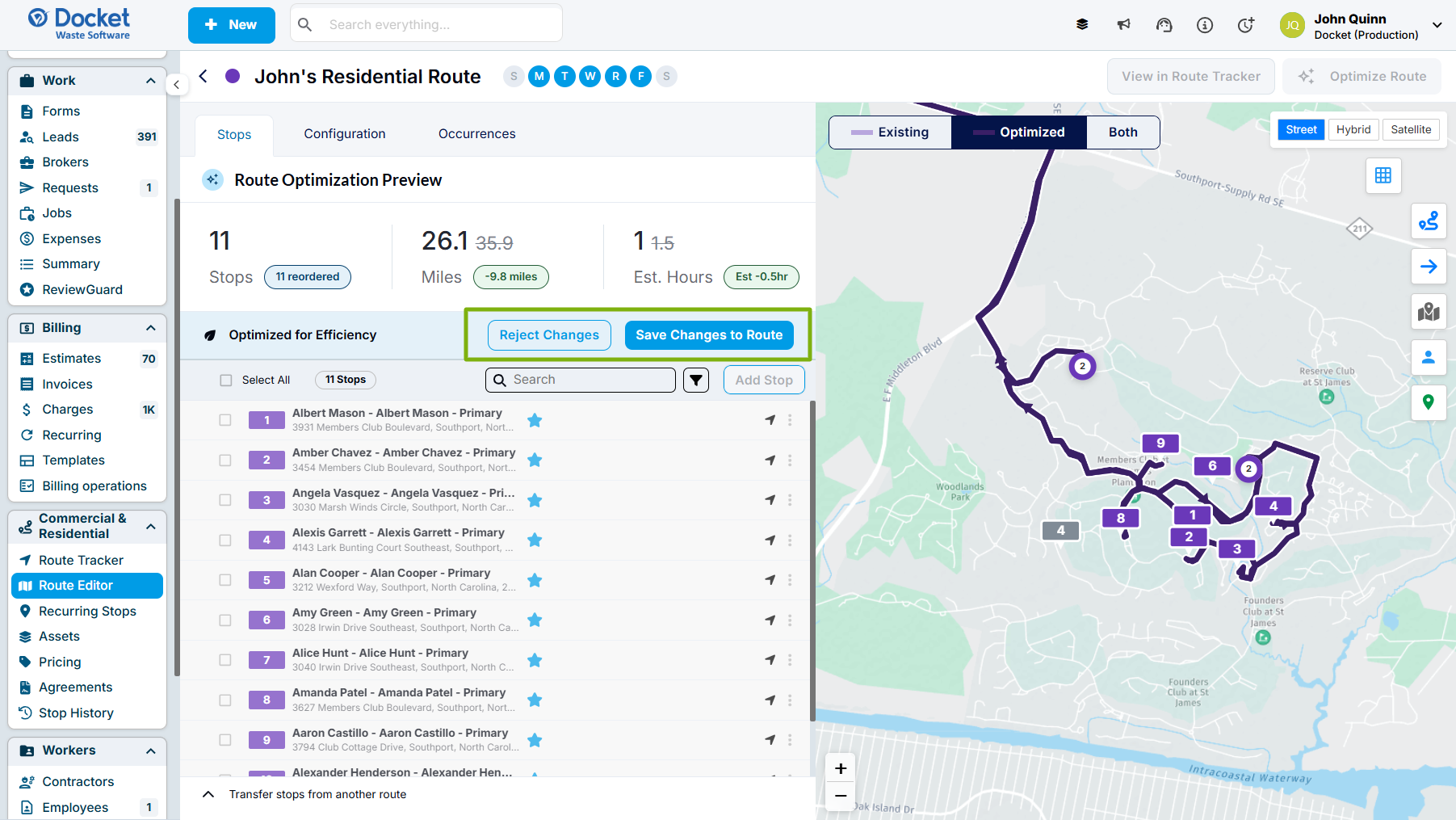
If you Save Changes, Docket will remember your selections for the next time you need to optimize this route.
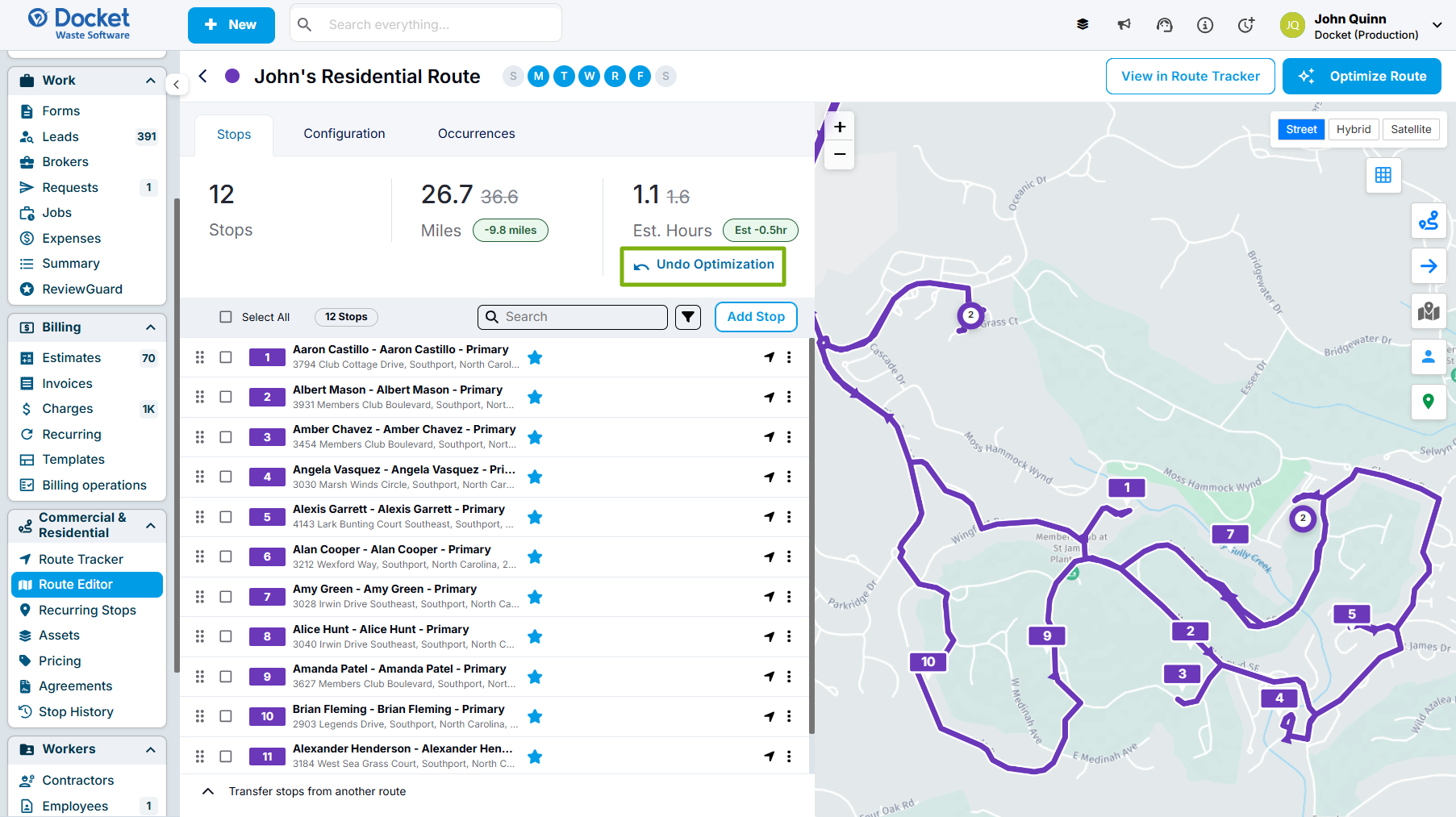
Saving updates your route template right away, so the new order applies every time the route runs. After you save, an “Undo Optimization” button appears. It only works on that page, for the person who saved.
What Route Optimization Doesn’t Include
It optimizes your route template, not a specific date. It doesn’t account for pauses or ad hoc stops on a particular day.
It always includes every stop on the route. You can’t optimize a selection of stops, and Docket doesn’t remove stops to fit a time or stop limit.
It doesn’t sort unassigned stops or move stops between routes.
It doesn’t plan dump trips or driver breaks.
It uses typical traffic for your Expected Start Time, not live traffic.
It doesn’t keep a history of past optimizations, so you can’t revert one later.
It works to honor required service times but can’t promise them. Review your route after you save.
If you have any questions, please reach out to our Support team through the chat widget on the bottom of this page or by sending an email to support@yourdocket.com!