Commercial & Residential Service Agreements Overview and FAQs
Last updated: November 11, 2026
A service agreement is a service package with a client attached. You can change nearly everything about a service package during the service agreement setup to customize it for that client.
Agreements are how you set up recurring invoices for a Commercial or Residential client for their repeating service(s), like weekly trash and recycling pickup.
Each agreement keeps the client's services, scheduled stops, and billing together in one place. Docket creates the invoices for you based on the agreement's schedule, so you don't have to manually create them.
Because the stops and the billing live in the same agreement, you can pause them together when a client needs a break or stops paying.
Before You Start
Here are a few things to know before you continue:
Depending on how your permissions are set up you may not be able to access some or all of these features. Please reach out to your Account Owner if additional access is needed.
Services and service packages must already exist in your Docket account before you can create a service agreement.
Client-specific pricing set up in a client's profile doesn't apply to service agreements.
About Service Agreements
Three pieces work together to get a client set up on recurring services/billing:
A Service is what your client gets: the asset (like a 96-gallon cart), the allowed waste material, how often you pick up, and the base price.
A Service Package bundles the services you often offer together (like weekly trash and every-other-week recycling) and adds how often you bill, when you charge, renewal terms, and discounts if applicable. Think of a service package as a template for a subscription.
When you attach a package to a specific client, Docket quotes the price for their location and creates their Service Agreement which holds their invoice schedule, associated stops, and full history of changes.
Create a Service Agreement
Service agreements are created by setting up recurring stops for clients. Docket pulls most of the details from the service package you choose for each client so you don't have to build everything from scratch every time.
To create a service agreement, follow the instructions below:
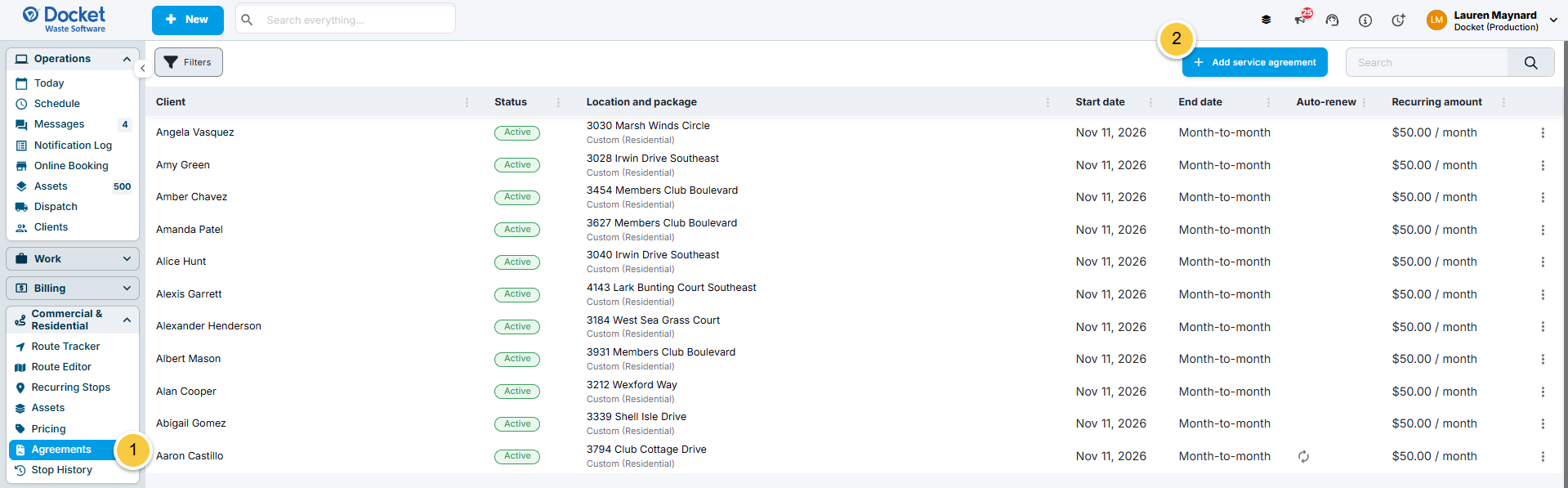
Click into "Agreements" in the left menu.
Click on "+ Add service agreement" in the top right corner.
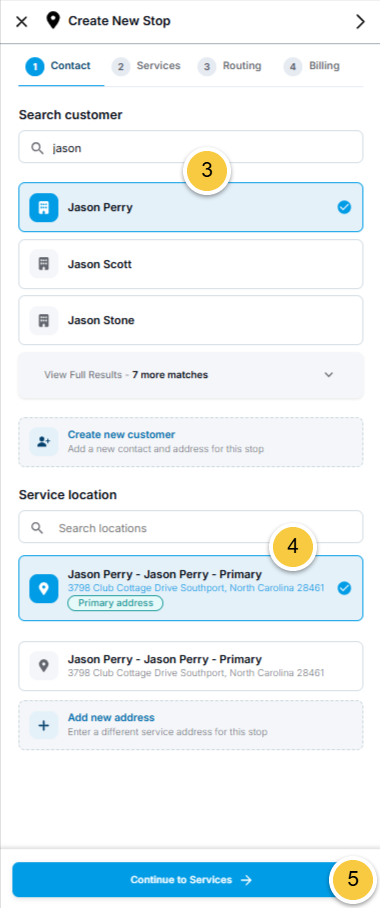
Search and select the client you're setting up this agreement for.
TIP: You can quickly add a new client without leaving this workflow, if needed.
Select one of the client's existing service locations or click on "Add new address" to quickly add a new one.
Click "Continue to Services".
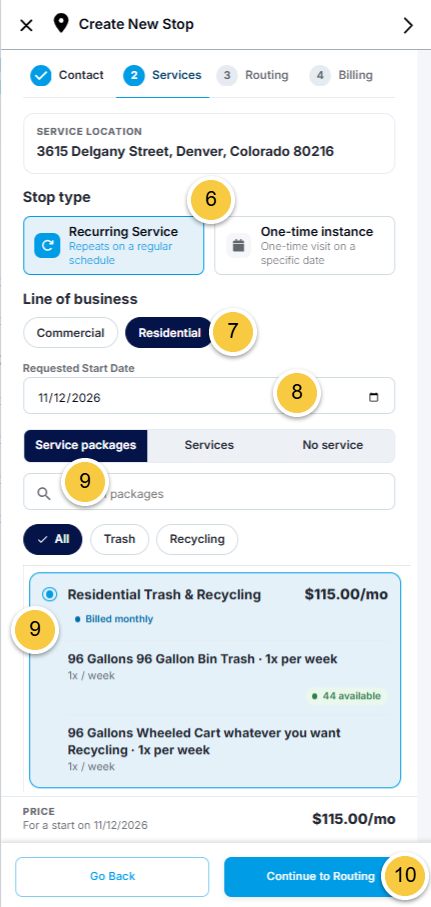
By default, Recurring Service will already be selected and this is the option you want to use when setting up both long-term and short-term agreements.
Select the applicable line of business.
By default, the next day's date will be the start date, but you can change this as needed.
The service packages section: select the package you want to use with this client.
Click "Continue to Routing".
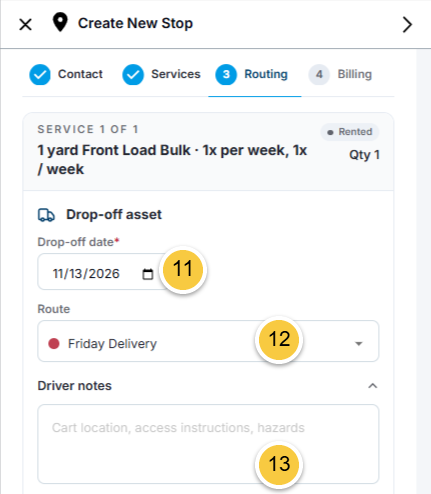
If the service package you chose involves an asset you owned, select a Drop-off date.
If the service package you chose involves a customer-owned asset, you won't see this section.
TIP: Because the drop-off needs to happen before service begins, Docket will warn you if the dates don't line up.
Add the drop-off stop to an existing route or leave it unassigned until you know which route it needs to be added to.
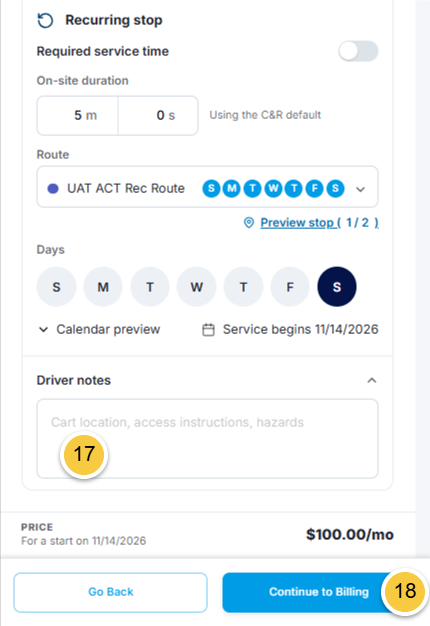
Click into "Driver notes" and add any notes for the driver, if needed.
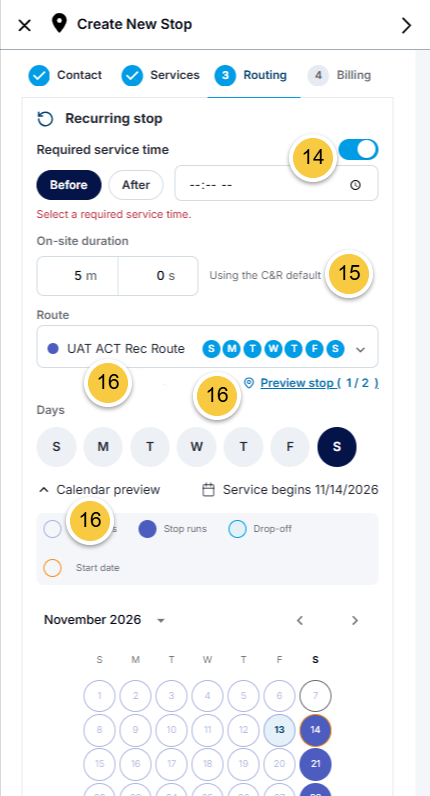
If there's a constraint on the service time for the recurring service stop, like when a school can't be serviced before 7am, toggle on the "Required service time" setting and enter the time.
Adjust the default duration for the recurring service stop if needed.
Assign the recurring service stop to an existing route (or leave it unassigned until you know which route it needs to be added to) and confirm the days of the week it needs to be completed on.
If you decide to add the stop to an existing route, you can use the calendar preview to see the stop's frequency. You can also use the preview stop option to see the most optimal spot for Docket to add the stop to the route. You'll also have the ability to reorder the stop using this option.
If you leave the stop unassigned, the days of the week and calendar preview won't autofill.
Add notes regarding the recurring service stop for the driver if needed.
Repeat Steps 11-17 for each service included in the package you've selected.
Click "Continue to Billing" once all of the recurring stops for each service are set up.
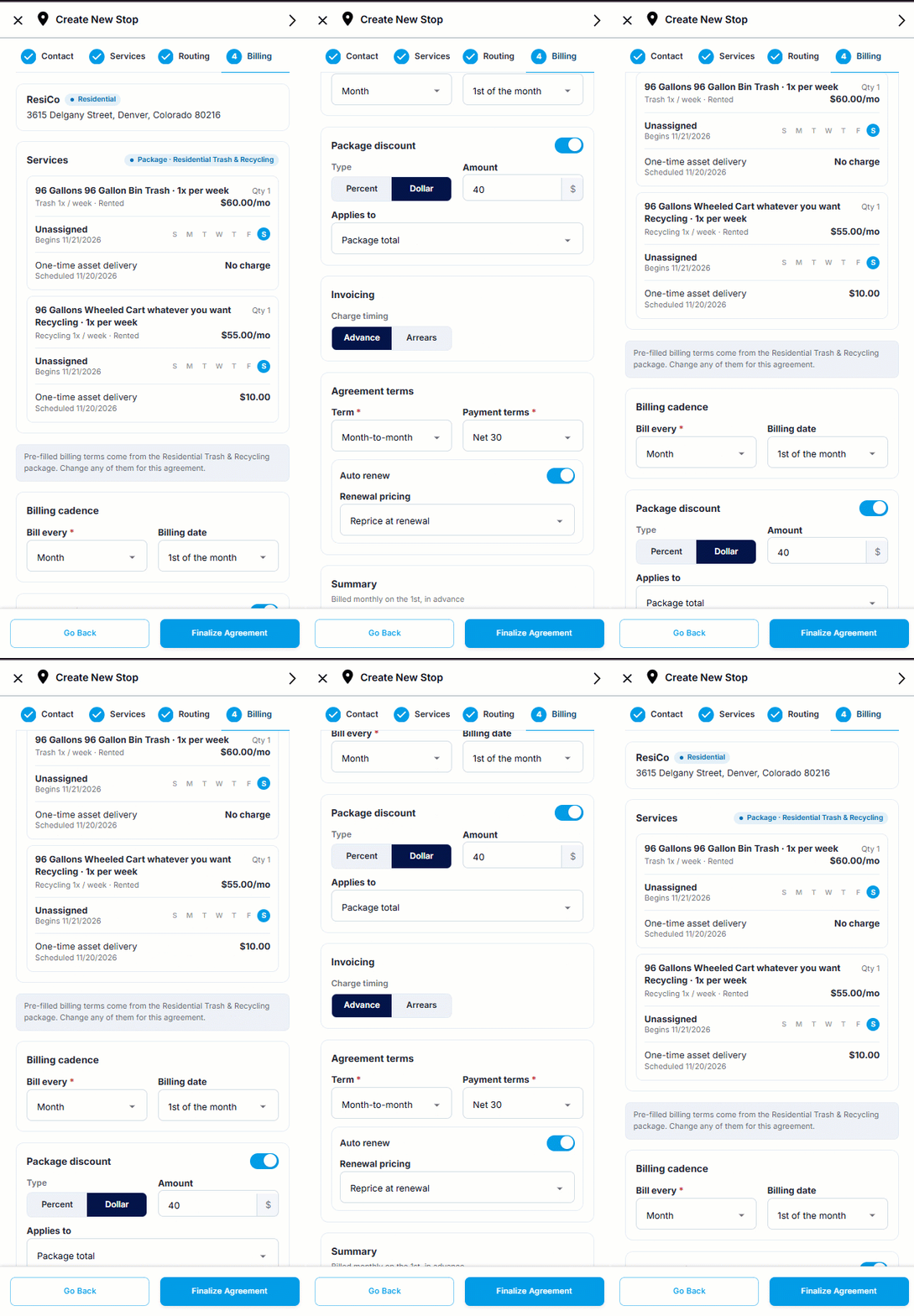
The billing details will automatically fill in from the Service Package you selected, but you can review and adjust any part of the billing as needed to customize the agreement to fit a client's needs.
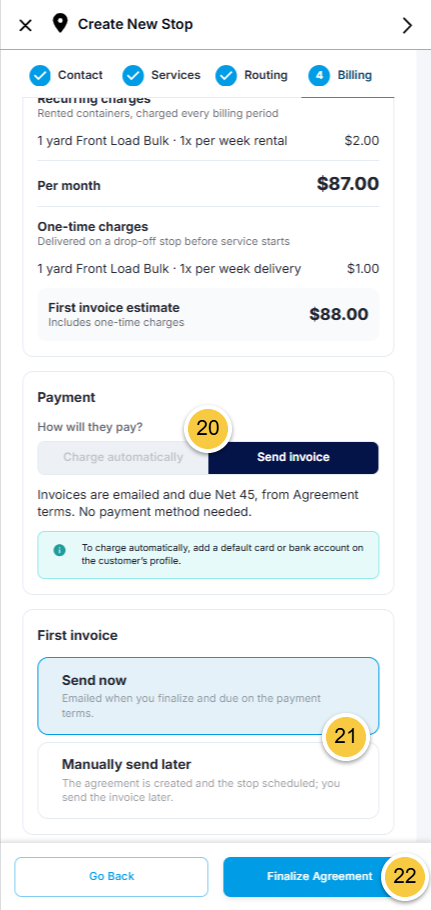
After you've reviewed/adjusted the billing details, decide whether the client will be charged automatically upon stop creation. This depends on whether they have a saved payment method in their profile.
Decide when the client will receive their first invoice for this stop.
Click "Finalize Agreement" to save the stop.
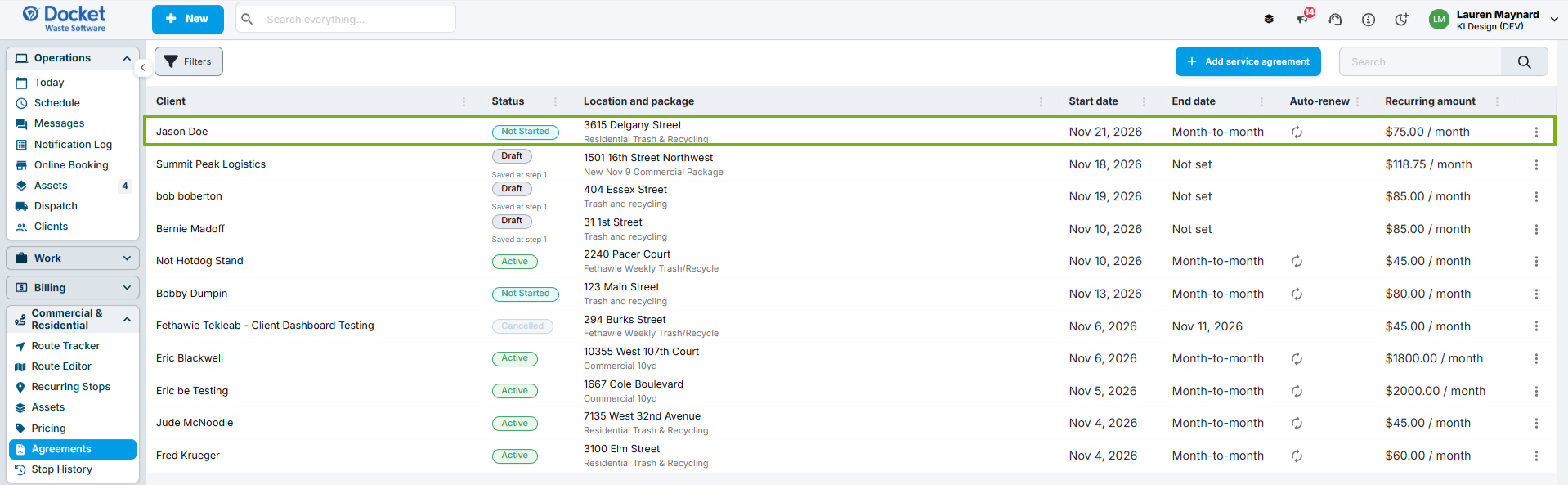
You'll now see the new service agreement listed at the top of the Agreements page.
Review and Manage Your Agreements
Every service agreement you create lives on the Agreements page.
At a glance you can quickly see each agreement's status, location/package, start and end date, whether it auto-renews, and its recurring amount.
TIP: Use the "Filters" button or the search box to find a specific agreement.
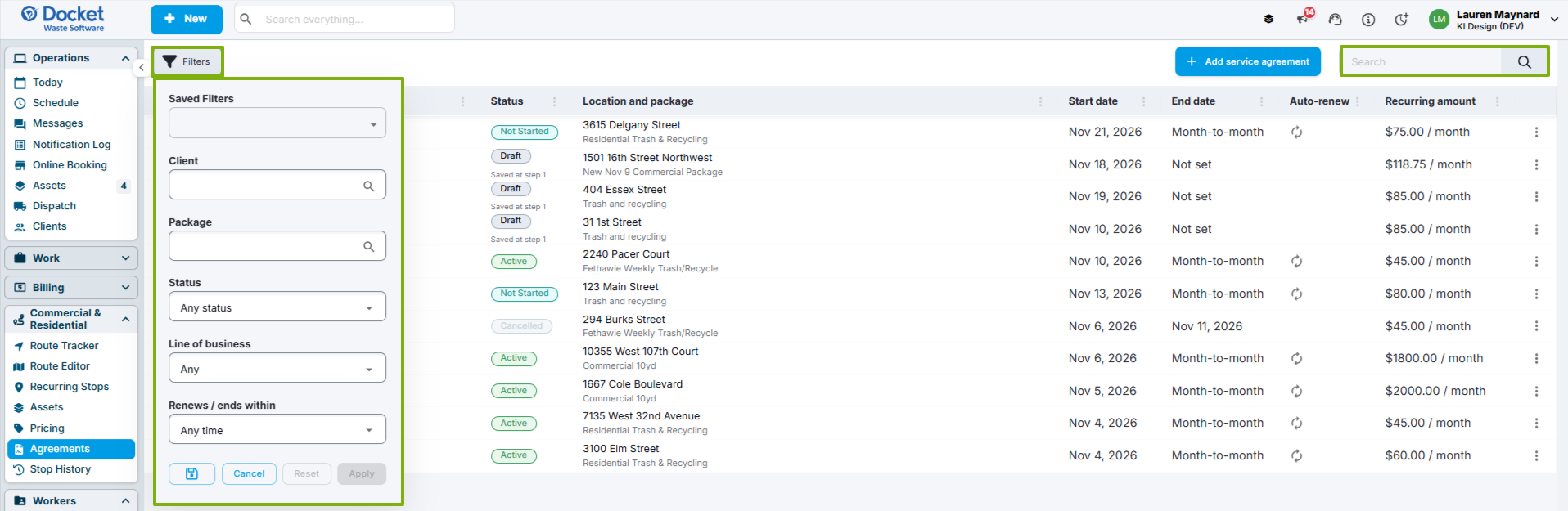
There are 7 statuses an agreement can fall into:
Draft means you started setting up the agreement, but haven't finalized it.
Not Started means the agreement is finalized, but the service start date hasn't arrived yet.
Active means the client's service is up and running.
Paused means the agreement (and its services and/or billing) is no longer active.
Delinquent means the agreement has been manually marked as such by you/your team.
Canceled means the agreement has been terminated before or during its term.
Expired means the agreement has reached the end of its term without auto-renewing.
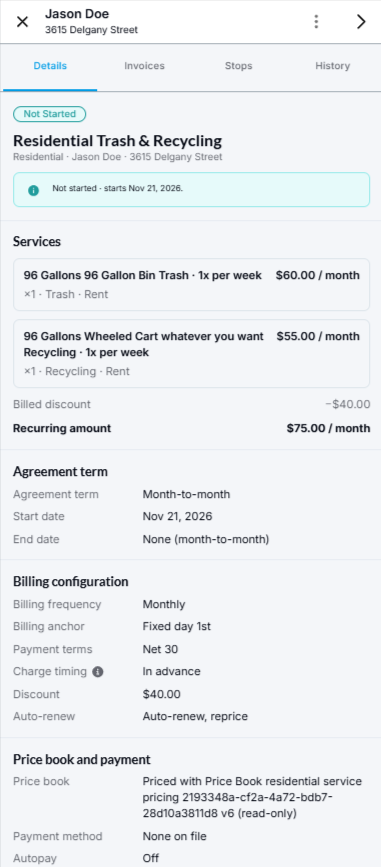
The details panel for an agreement is organized into 4 sections:
Details is a snapshot of how the agreement is set up. It shows the status, the services and their prices, any discounts, the total recurring amount, the terms, the billing setup, the payment method, and whether autopay is on or off.
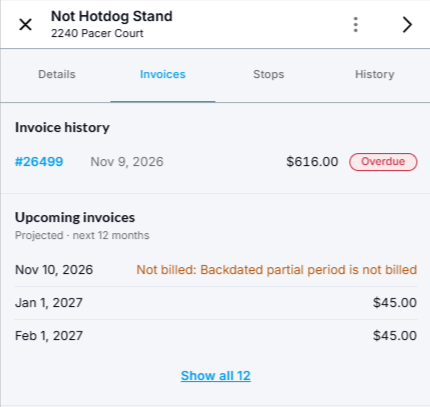
Invoices shows the invoices already created for the agreement plus a schedule of upcoming invoices projected over the next 12 months. The upcoming invoices are a schedule, not a history, so amounts can change as extra charges add up.
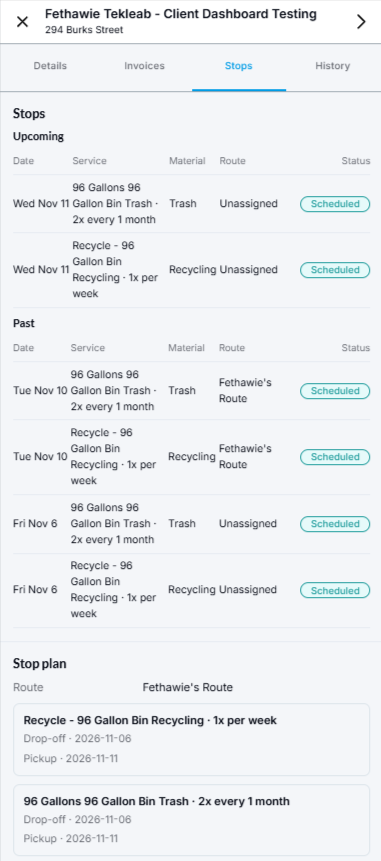
Stops lists the upcoming scheduled stops for the agreement and their related details. You'll also see past stops and the stop plan, which shows the route and drop-off details.
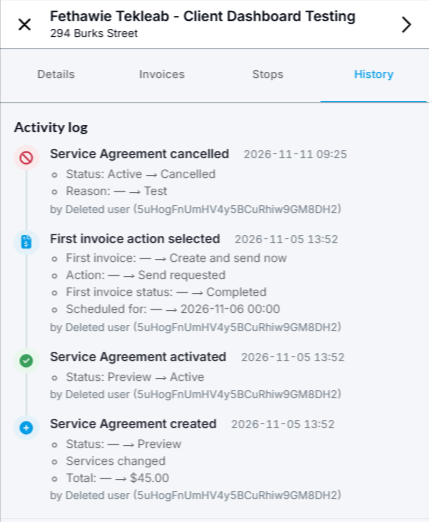
History is the activity log for the agreement so you can always see exactly who made a change and when.
Edit an Agreement
Plans often change and a client's services often change with them. You can easily update existing service agreements to keep them in line with what your clients actually receive and pay for.
To edit a service agreement, follow the instructions below:
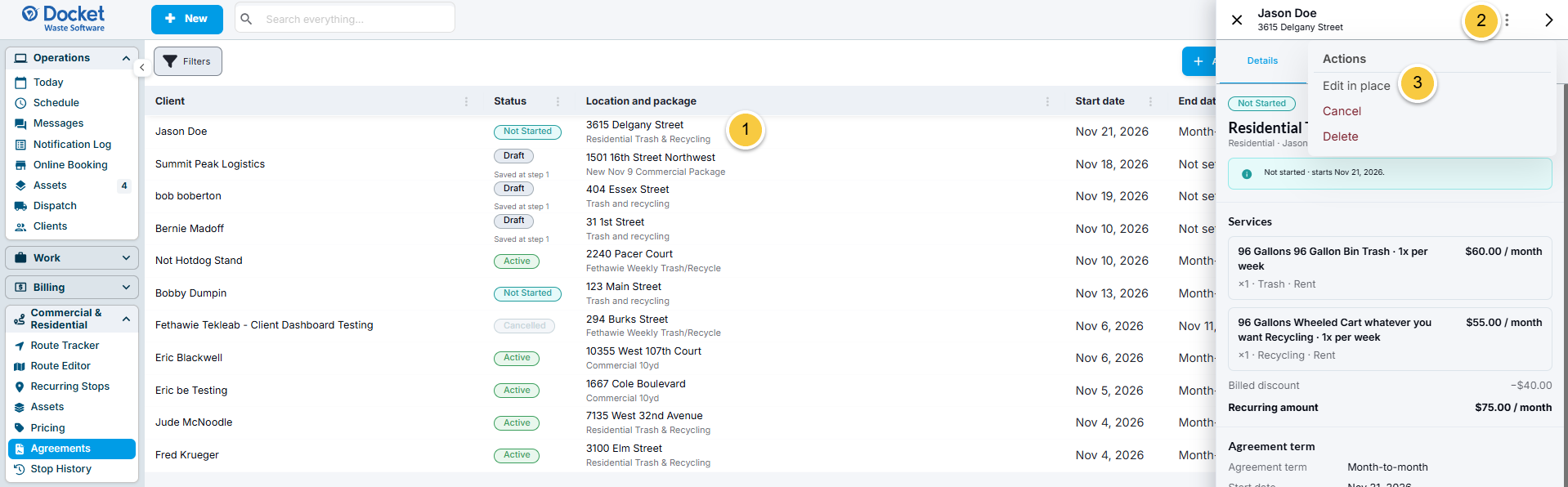
From the Agreements page, find the agreement you need to edit and click on it.
Click on the 3 vertical dots in the top right corner.
Click on "Edit in place" from the menu that appears.
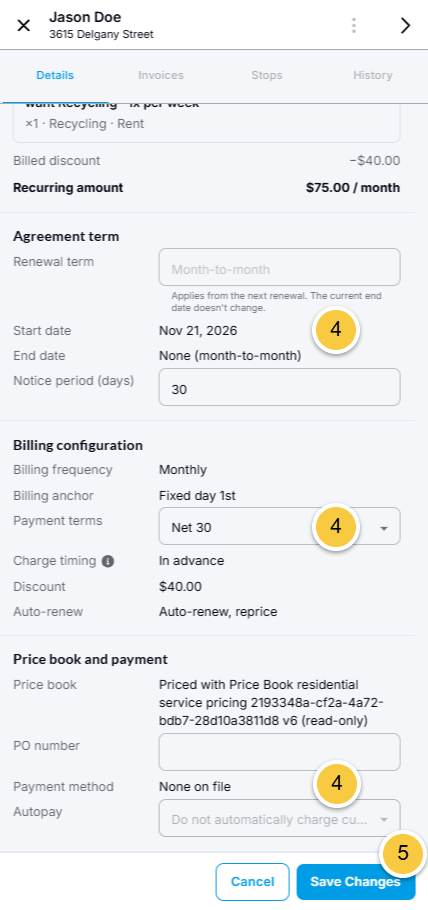
Adjust the agreement's details as needed.
Click "Save Changes" to activate your adjustments.
Pause an Agreement
Sometimes an agreement needs to stop temporarily, like when a client isn't paying their bills or is going out of town.
Pause an agreement when you need to stop the service and its billing for a while, like when a client is out of town for two months.
To open the actions menu, follow the instructions below:
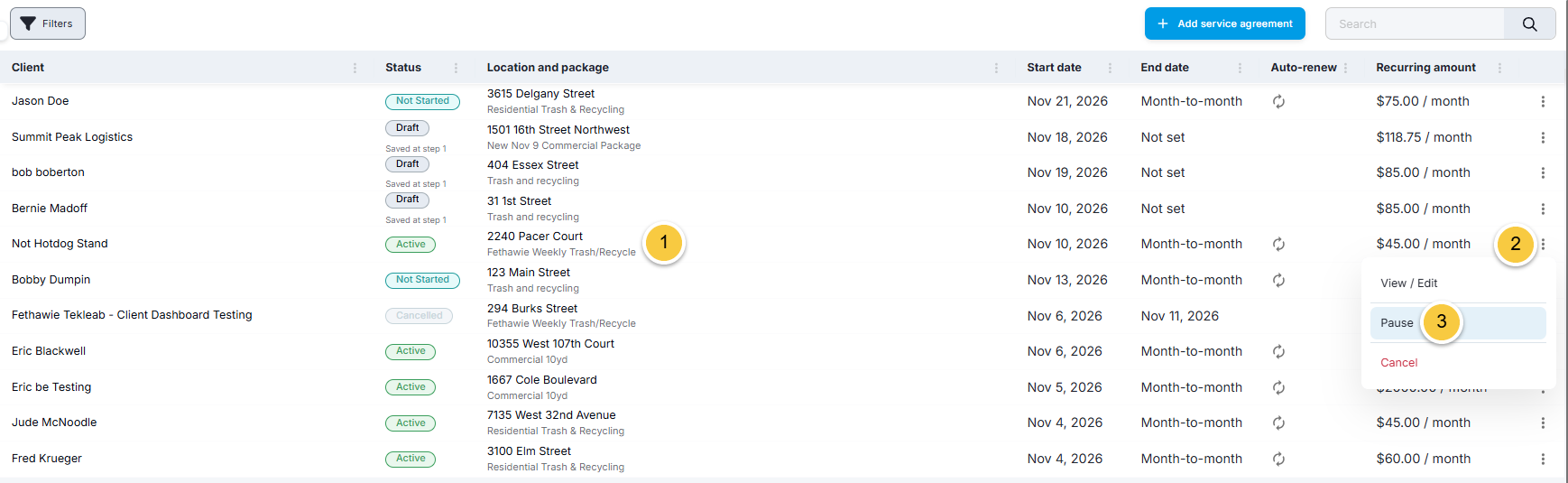
From the Agreements page, find the agreement you need to pause and click on the 3 vertical dots to the right of it.
Click on "Pause" from the menu that appears.
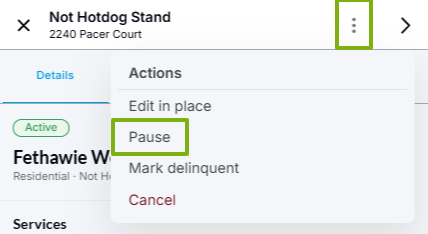
TIP: If you're currently looking at the service agreement, click the 3 vertical dots in the top right corner and click on "Pause" from the menu that appears.
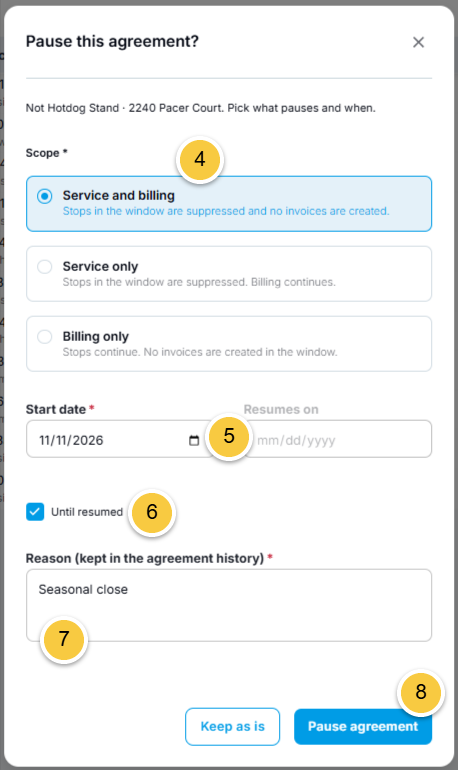
Select whether you want to pause Service and billing, Service only, or Billing only.
The Start date will default to today's date, but you can change this and also set a date to resume this agreement.
If there's no set date to resume the agreement on, keep the "Until resumed" box checked. Otherwise, uncheck the box if you already know the date the agreement needs to be resumed on.
Add a reason for pausing the agreement.
Click "Pause agreement" to save the pause.
You'll now see the service agreement flagged as Paused on your Agreements page.

Resume an Agreement
A paused agreement stays on hold until you tell it otherwise. Resume an agreement when you’re ready for the client’s service and/or billing to pick back up.
To resume an agreement, follow the instructions below:
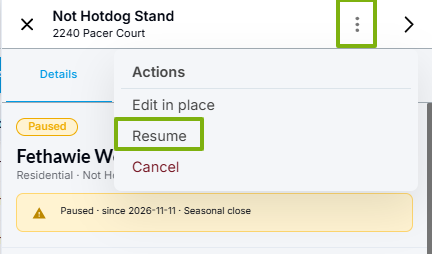
From the Agreements page, find the agreement you need to pause and click on the 3 vertical dots to the right of it.
Click on "Pause" from the menu that appears.
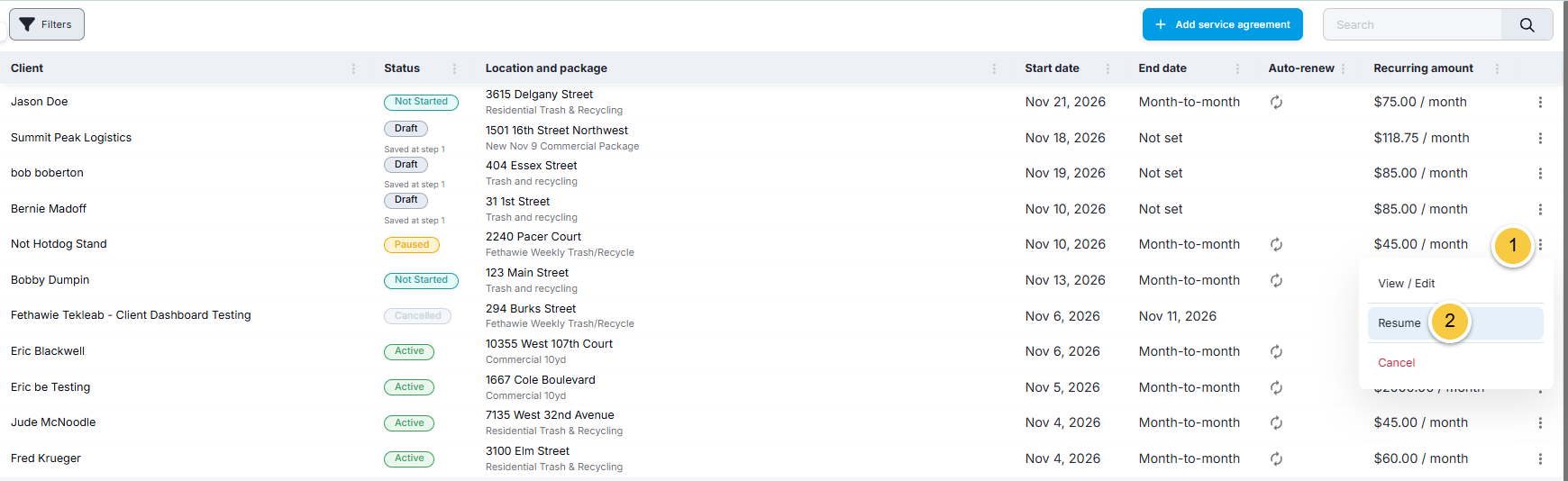
TIP: If you're currently looking at the service agreement, click the 3 vertical dots in the top right corner and click on "Resume" from the menu that appears.
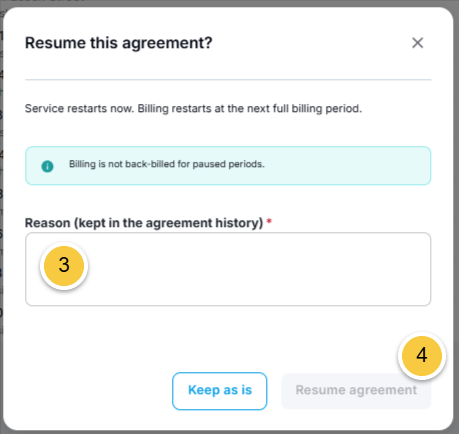
Add a reason for resuming the agreement.
Click on "Resume agreement" to reactivate its services and/or billing.
Mark an Agreement Delinquent
Mark an agreement as Delinquent when a client isn't paying or keeps overfilling their bins so you can flag it for your team.
Please Note: Marking an agreement as Delinquent is a manual flag and doesn't pause service or billing. If you also want service and billing to stop until the client catches up, pause the agreement as well.
To mark an agreement as Delinquent, follow the instructions below:
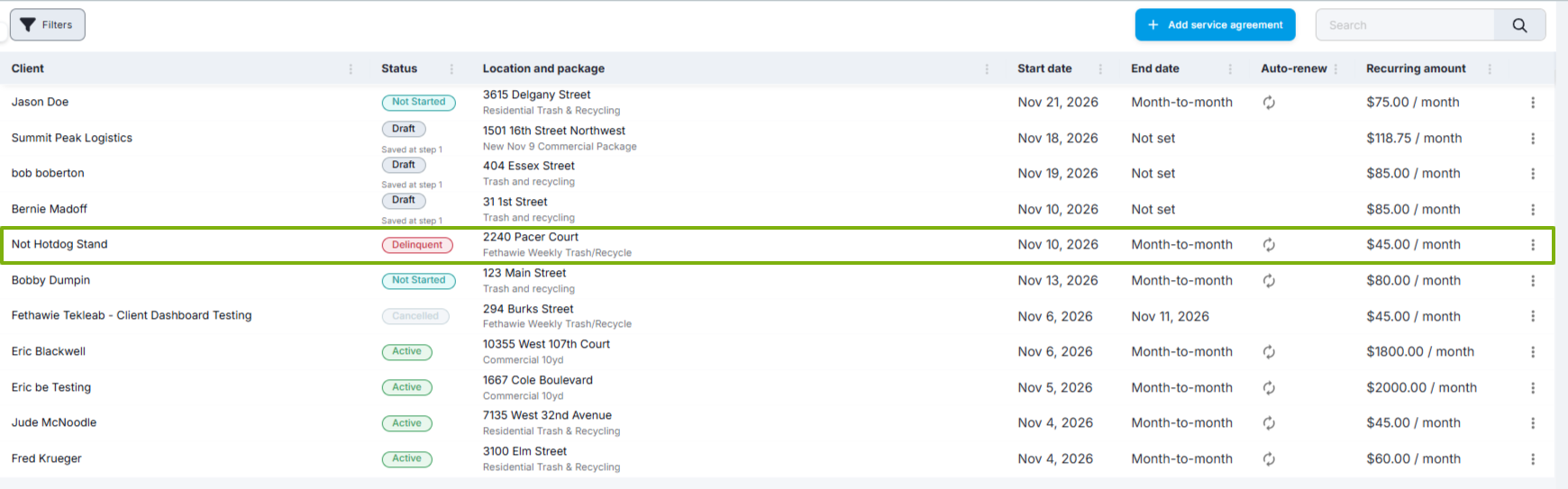
From the Agreements page, click to open the delinquent agreement.
Click on the 3 vertical dots in the top right corner.
Click on "Mark delinquent" from the menu that appears.
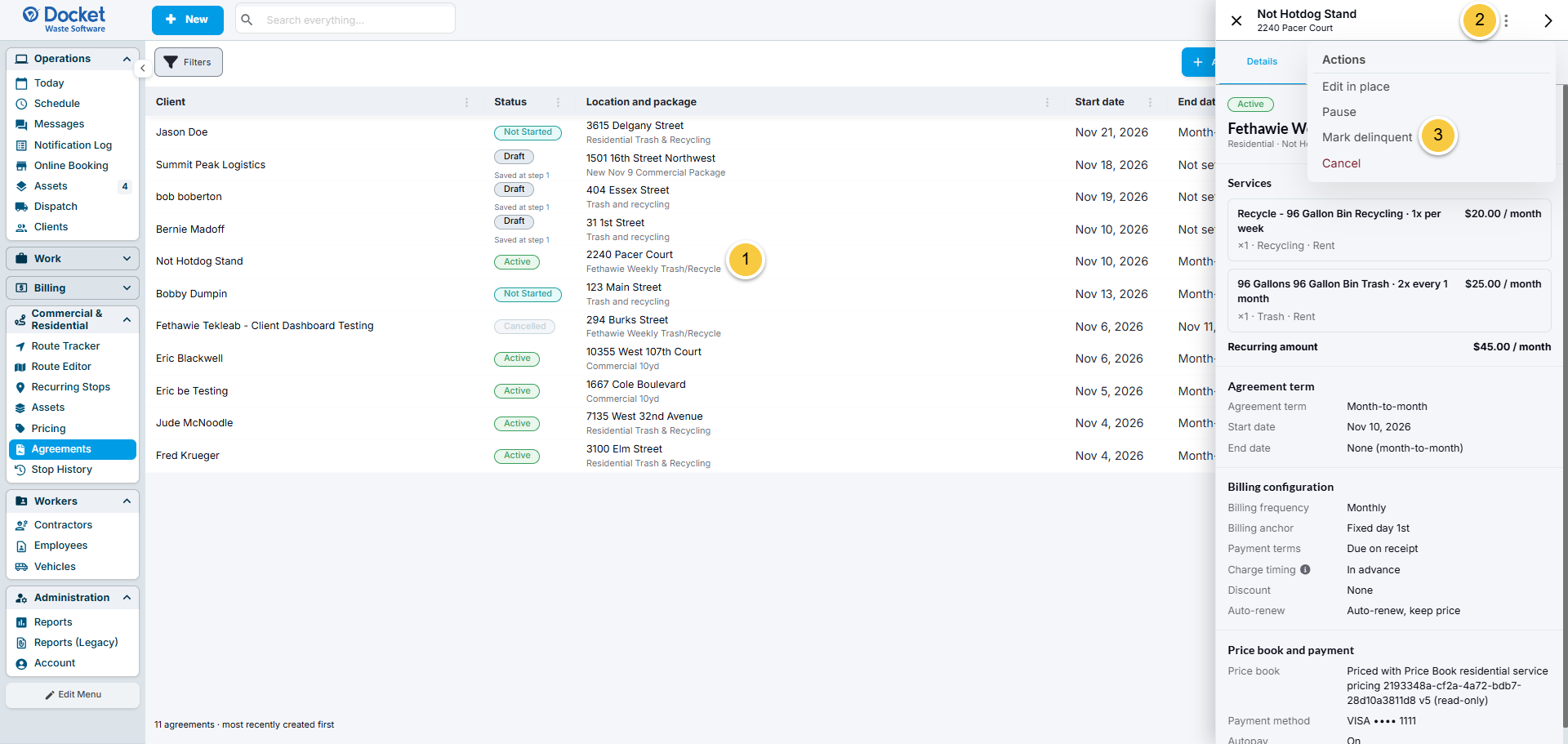
Enter a reason for marking the agreement as Delinquent.
Click "Mark delinquent" to flag it as such.
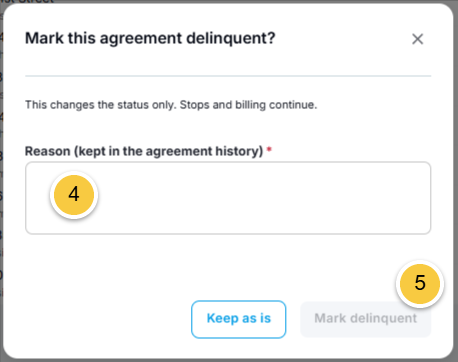
You'll now see the service agreement flagged as Delinquent on your Agreements page.
Mark an Agreement Not Delinquent
Once a client has caught up and the issue that got them flagged is settled, you’ll want their agreement to show that it’s back in good standing.
Clear an agreement's delinquency when a client has paid what they owe or you’ve resolved the problem that made you mark them delinquent in the first place.
To clear an agreement's delinquency, follow the instructions below:
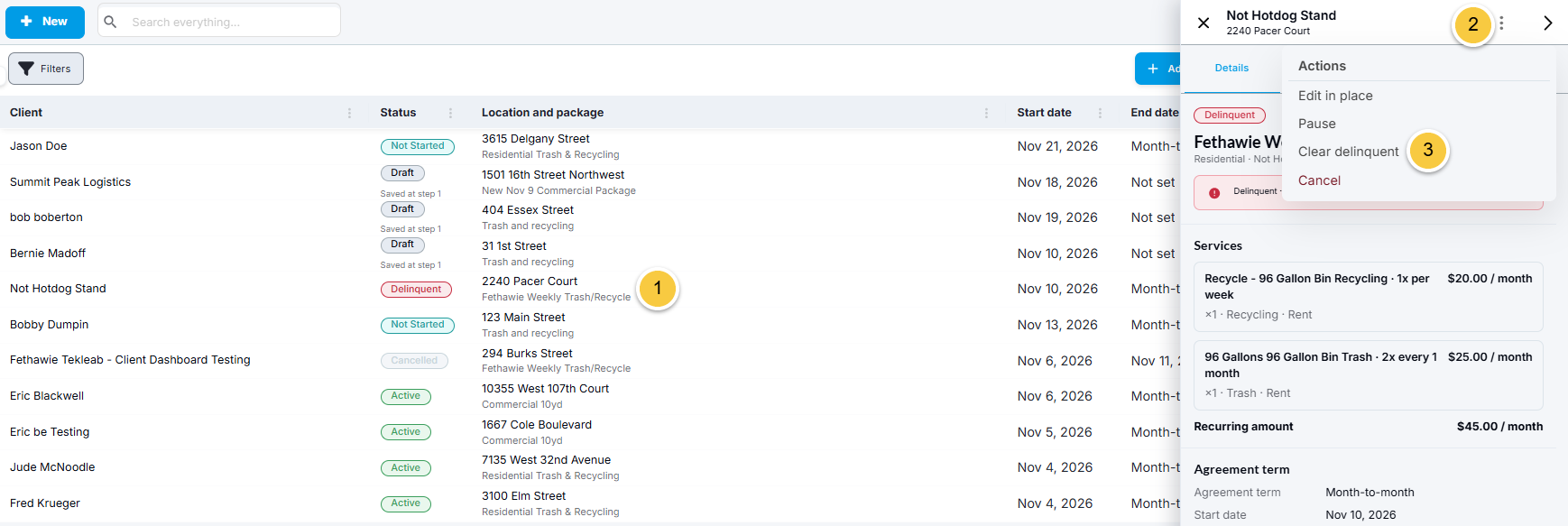
From the Agreements page, click to open the delinquent agreement.
Click on the 3 vertical dots in the top right corner.
Click on "Clear delinquent" from the menu that appears.
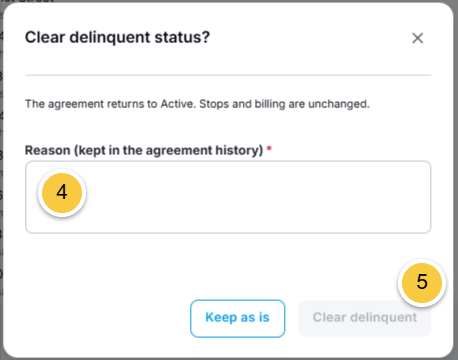
Add a reason for clearing the delinquency.
Click "Clear delinquent" to remove the flag.
Cancel an Agreement
Sometimes a client’s service ends for good and you need to close out the agreement instead of pausing it.
Cancel an agreement when a client no longer wants service and you don’t plan to start it back up.
To cancel an agreement, follow the instructions below:
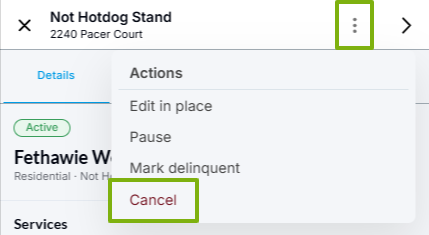
From the Agreements page, find the agreement you need to pause and click on the 3 vertical dots to the right of it.
Click on "Pause" from the menu that appears.
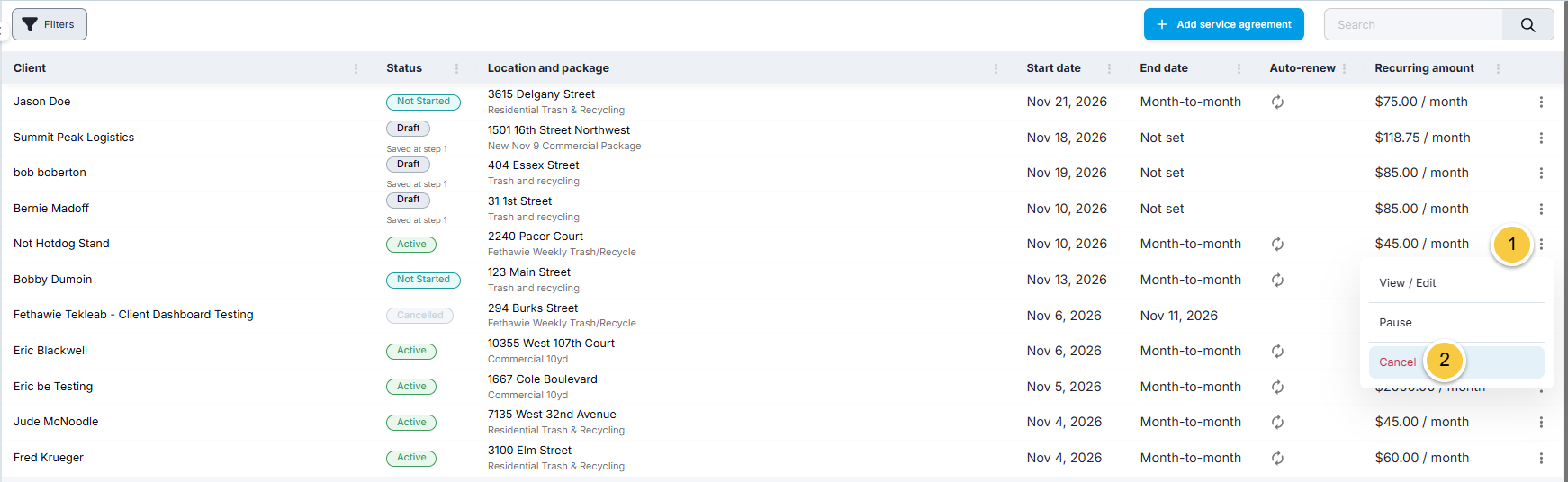
TIP: If you're currently looking at the service agreement, click the 3 vertical dots in the top right corner and click on "Cancel" from the menu that appears.
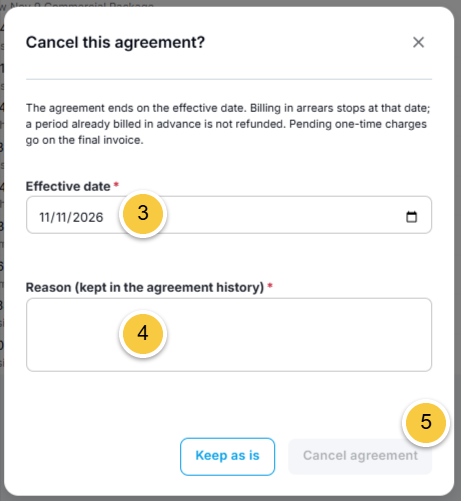
Select the date on which the agreement needs to be canceled.
Add a reason for canceling the agreement.
Click "Cancel agreement" to save.
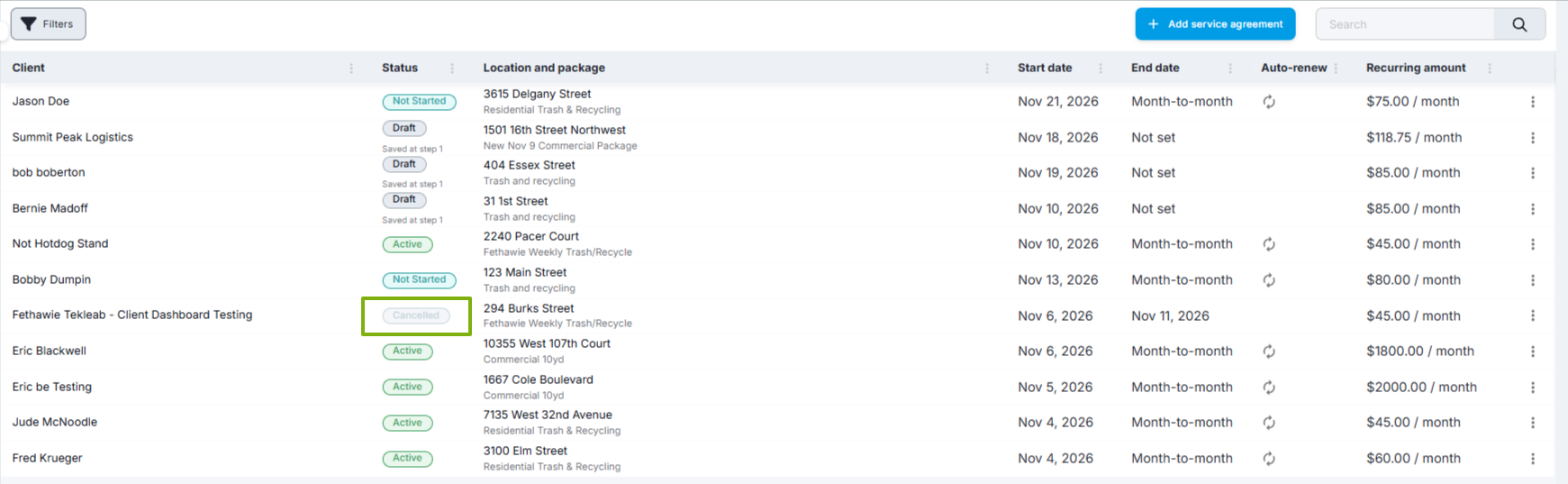
You'll now see the service agreement flagged as Cancelled on your Agreements page.
Frequently Asked Questions (FAQs)
These FAQs address common questions and quick clarifications to help you use this feature with confidence.
What's the Difference Between a Service Package and a Service Agreement?
A service package is a template for the combined services you offer to lots of clients, like trash + recycling for residential clients.
A service agreement is that package attached to one specific client and their location, schedule, billing, and terms info.
Does the Client Threshold Setting Stop Me From Booking Commercial or Residential Services for a Client?
No. The client threshold setting does not stop you from booking Commercial or Residential services for a client with a service agreement.
Any unpaid invoices from the agreement do count toward the client's balance, though.
Do Service Agreements Act As Recurring Invoices?
Yes, for clients who subscribe to a recurring service. The agreement creates your invoices on a schedule based on the stops that happen.
If you have any questions, please reach out to our Support team through the chat widget on the bottom of this page or by sending an email to support@yourdocket.com!