
DocketShop, also known as Online Booking, is a digital shopping cart that’s fully integrated with your Docket account and heavily customizable.
Part of the customization ability lives in the 6-step workflow associated with your online Storefront that lives on your website.
This article is Step 6.6 of 6 mini-steps listed in our DocketShop Setup Directory.
Before You Start
Here are a few things to know before you continue:
- You must have Admin or Office Staff permissions in order to access or edit a DocketShop workflow step.
- You must have an active DocketShop subscription in order to access or edit a DocketShop workflow step.
- While DocketShop can be used without a website, we recommend integrating it with your business website. Docket provides website services if you don’t already have one. To learn more, click here!
Access the Order Confirmation Message
To view a workflow and its various steps (also called webforms or forms) in DocketShop, click into Online Booking towards the top of your left-hand menu.
Once you’re in the DocketShop editor, you’ll always land in the Storefronts section by default.
You’re also going to see the workflow editor by default when clicking into Online Booking.
Make sure the correct Storefront name is selected to the left before you begin using the workflow editor otherwise you’ll edit the wrong Storefront’s workflow.
Set Up the Order Confirmation Message
The sixth, and last, step in your Storefront’s workflow will show a confirmation message to your new client along with the details of their submitted order.
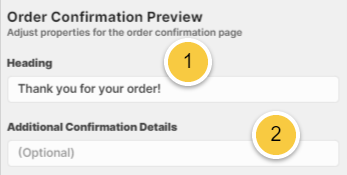
- Heading is where you can customize the default “thank you” message.
- Additional Confirmation Details is where you can add more information that you may want to display within the order confirmation screen.
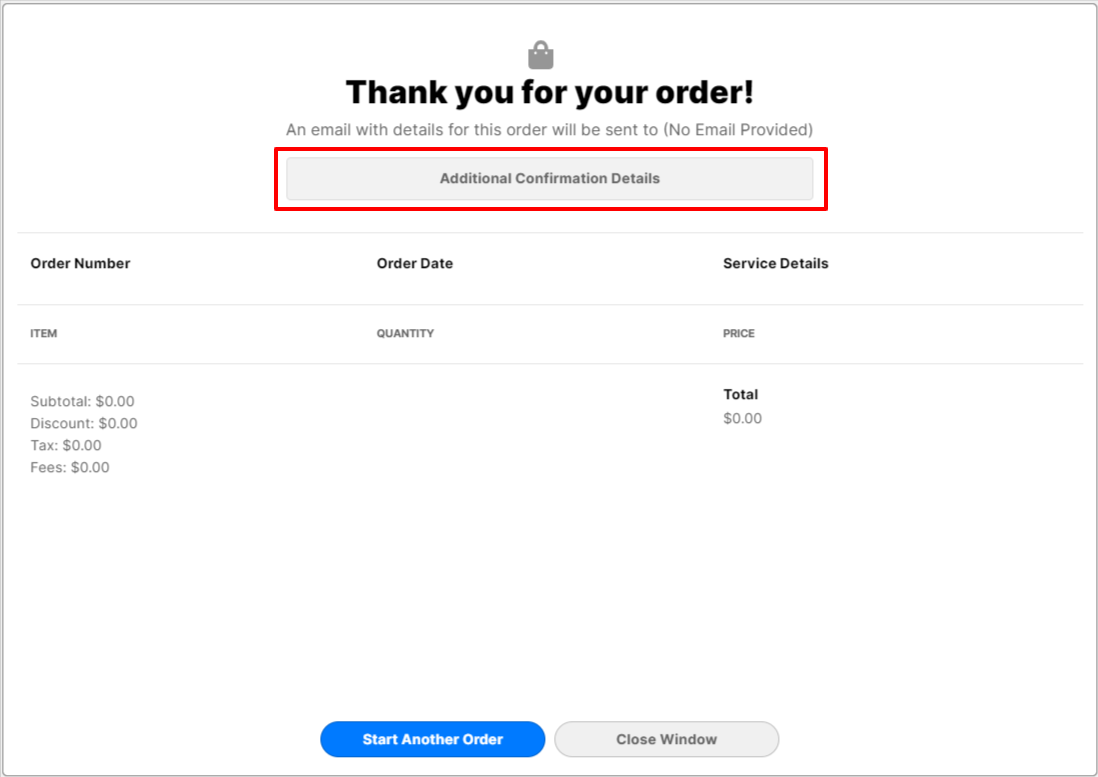
Don’t forget to click "Save Changes" at the top any time you make a change!
And that’s the last step! To quickly access previous steps in the DocketShop setup process, please click here.
If you have any questions, please reach out to our Support team through the chat widget on the bottom of this page or by sending an email to support@yourdocket.com!